
In this guide, you will find answers to frequently asked questions about using Microsoft Teams.

Useful materials:
- The slides and annotated video recording of the training course “Using Microsoft Teams” that took place on 19 December 2019.
- Short videos by Microsoft on using MS Teams.
FAQ
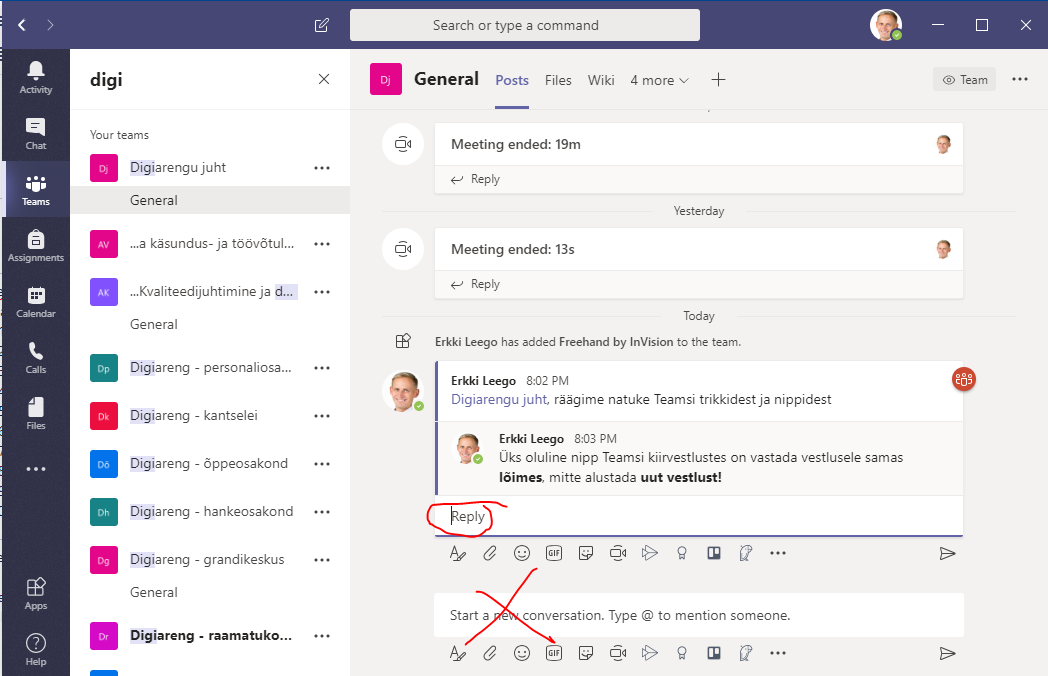
- An important trick in an MS Teams chat is to reply to a conversation in the same thread instead of starting a new conversation:
- Use the Reply field in the conversation.
- Do not reply by writing to the field Start a new conversation.
If you have many teams, it can be quite difficult to keep track of what's happening in all the teams.
If you want to get the attention of a group, channel, or person, use the @ symbol in your messages.

In this case, the conversation partner will receive an active notification - a red alert will appear in their menu in the "Activity", "Teams" and/or "Text chat" windows.

A person who is not actively using Teams (e.g. an external participant (Guest)) will also receive a notification by email.
If you have turned on channel notifications, you will receive notifications even if you do not use the @ symbol.
By default, notifications for new notifications for groups are turned off in Teams.
See Creating a team workspace in Teams (turn on notifications for new group messages).
Teams allows moving important channels to Favourites to display them on top of your Teams list.
- Click the three dots (...) → click Move to → select Favourites.

It is possible to create private channels in Teams.
When creating a new channel, you can choose whether access is available to the entire team or only to a part of it. The default is access to everyone.
To create a private channel:
- Open the Teams tab → click the Join or create team button and select Create team.

- When choosing a teamplate, we suggest picking Other.

- To confirm, click Use this template.

- From the window that opens, select Private.

- Add a team name and click the Create button.

- To add members, type a name or email address to the box and click Add.

- MS Teams allows adding modules to be used within a team.
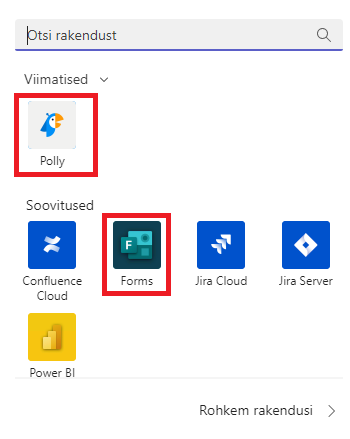
- MS Forms and Polly are suitable for voting and polls.
- Check Organizing a vote in Teams (old).
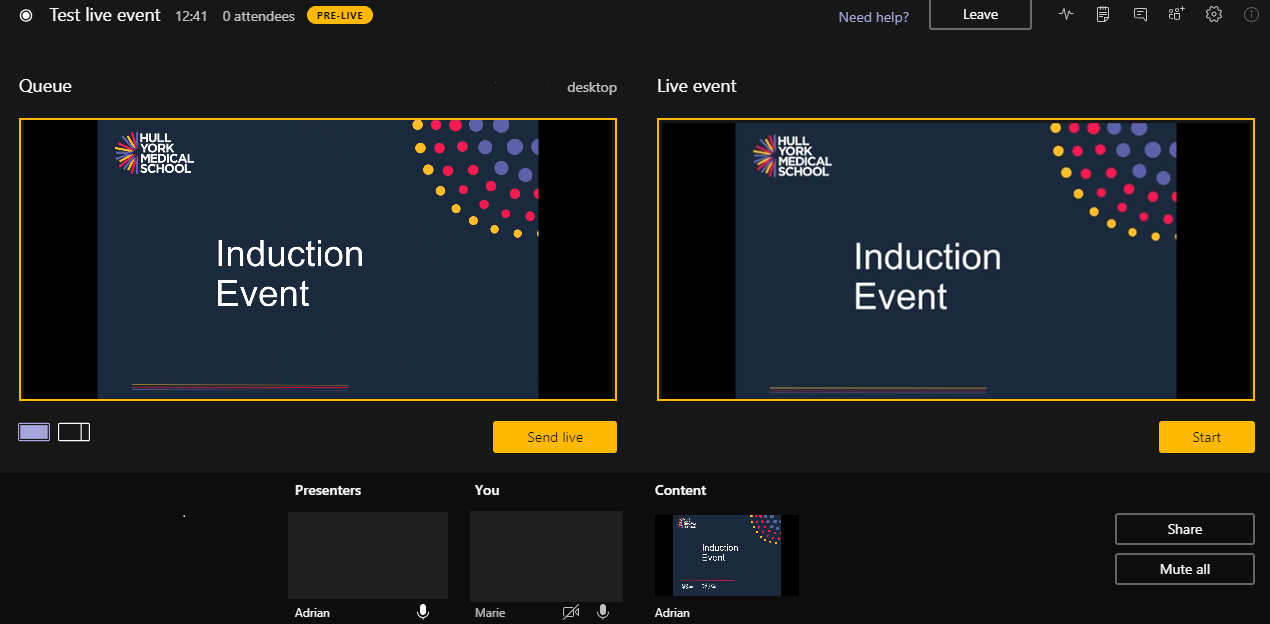
- MS Teams offers simple tools for producing and broadcasting video of a public seminar using its Teams Live Event function.
- An event can have up to 10,000 viewers.
- Viewers can watch the video and ask questions.
- Check Organizing an event with the help of IT helpdesk
- An external member can be added to an MS Teams team as a guest, using the person’s e-mail address.
- If the person has not used MS Teams before, he/she must first create a free account of MS Teams and can then join the corresponding workgroup.
- Open the Team you would like to add the user → click More settings → select Add member.

- To add members, type a name or email address to the box and click Add.
- Open the Team you would like to add the user → click More settings → select Copy link.

- MS Teams allows configuring the rights of the team members to create and delete elements of the workgroup.
- The following elements can be managed:
- Allow members to create and update channels.
- Allow members to delete and restore channels.
- Allow members to add and remove apps.
- Allow members to upload custom apps (by third parties).
- Allow members to create, update and remove tabs.
- Allow members to create, update and remove connectors.
- Give members the option to delete their messages.
- Give members the option to edit their messages.
- Allow guests (members outside the university) to create and update channels.
- Allow guests to delete channels.
- Open the Team you would like to add the user → click More settings → select Manage team.

- Click the Settings tab.

- Click the three dots (...) button for More settings → select Settings.

- In the window that opens, select Appearance from left-side tab and click the button next to Theme to select a theme.

Set the account status to Do Not Disturb.

When attending a meeting, you can open the shared screen by the presenter.
- To do this, click click the Pop outbutton on the menu panel.

- The shared content appears in a separate window that you can conveniently place anywhere on your screen (e.g. move to another screen, change size, etc.)
This page has no comments.