Helpdesk

Page tree

University of Tartu IT wiki

Versions Compared

Key

  • This line was added.
  • This line was removed.
  • Formatting was changed.

In this guide, you will find answers to frequently asked questions about using Microsoft Teams.

HTML Wrap
classbutton button1

(info) Eesti keeles


Useful materials: 

FAQ


Expand
titleHow to schedule a meeting?


Expand
titleI can't login to Teams
  • NB! To log in to Teams, enter username@ut.ee, not firstname.surname@ut,ee
.


Expand
titleHow to keep conversations in organised threads? 
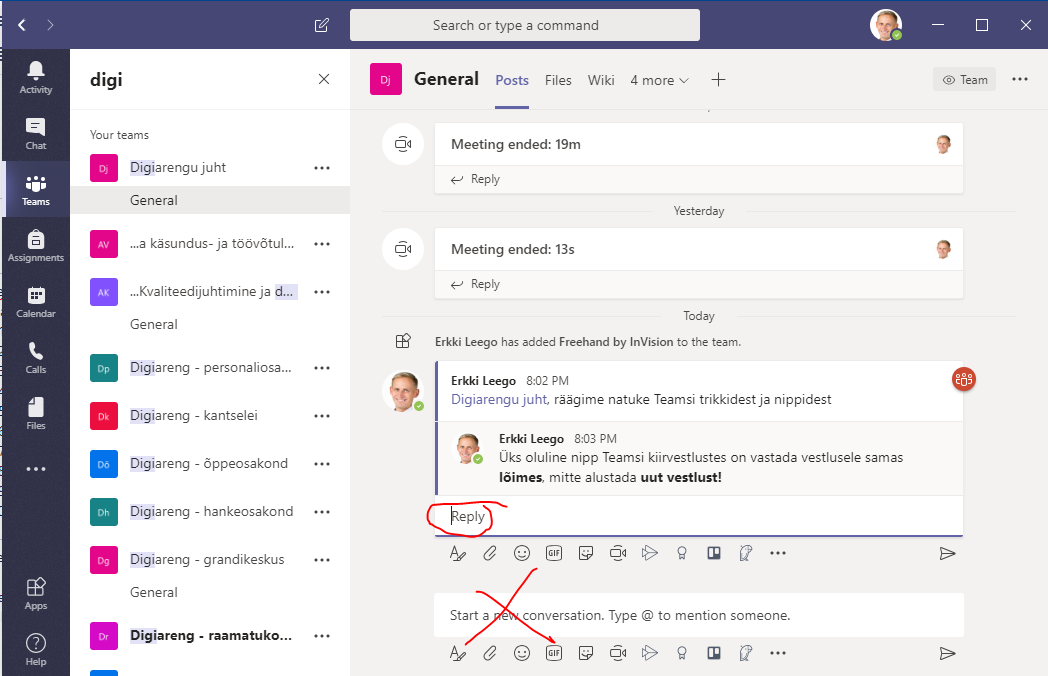
  • An important trick in an MS Teams chat is to reply to a conversation in the same thread instead of starting a new conversation: 
    • Use the Reply field in the conversation.
    • Do not reply by writing to the field Start a new conversation.


Expand
titleHow can I ensure my message is seen by my conversation partner? What about notifications?
  • If you

    belong to

    have many teams, it

    may

    can be

    rather

    quite difficult to keep

    an eye on all discussions

    track of what's happening in all

    groups

    the teams.


  • If you want to get the attention of a group, channel, or person,

  •  
  • use the

  • @mention. 
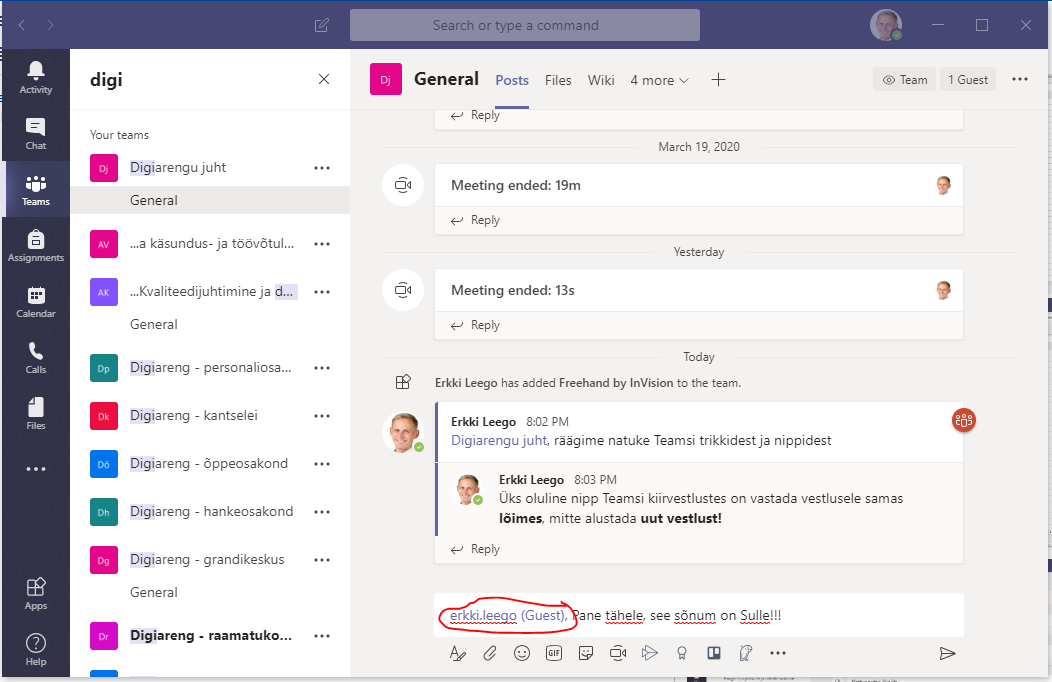
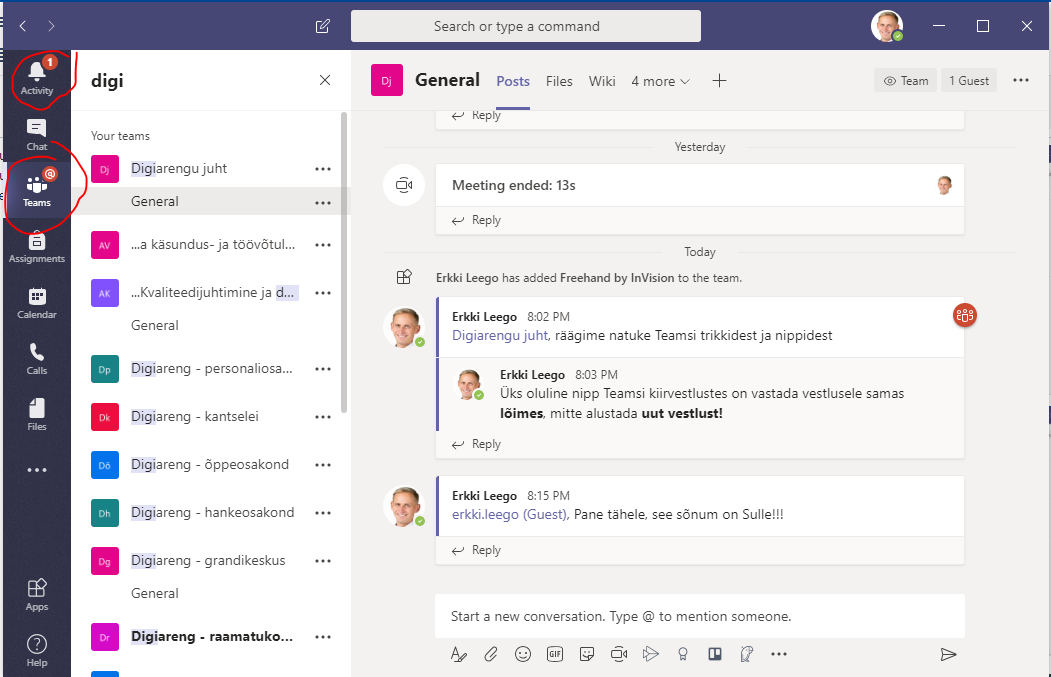
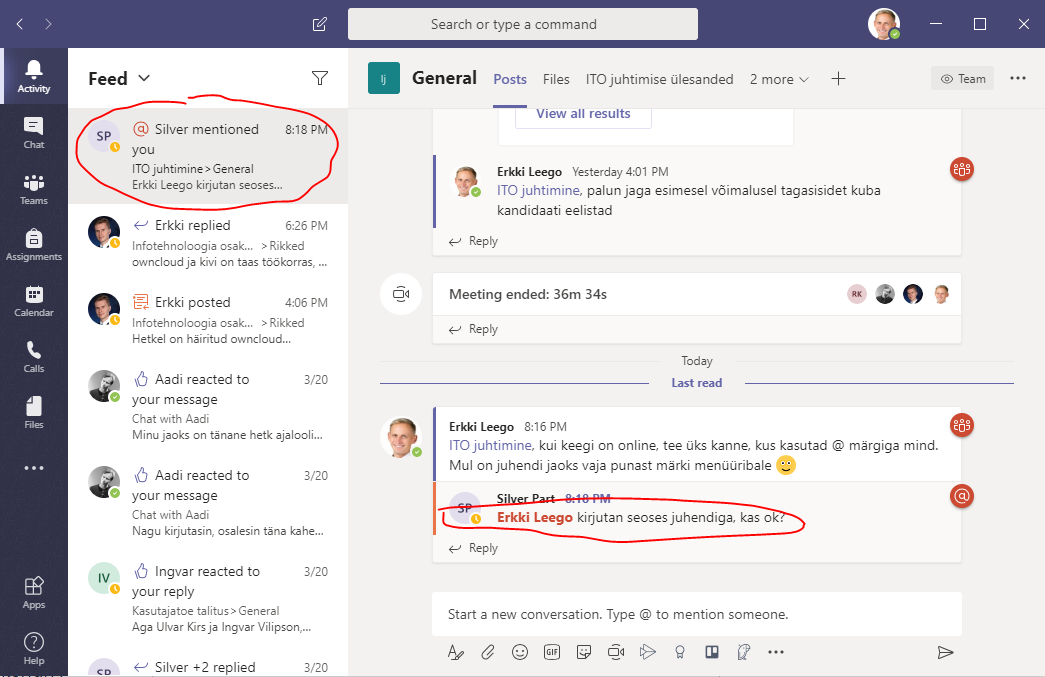
  • Then the mentioned person will receive an active notification - a red alert in the Activity and/or Teams and/or Chat menu.
  • A person who does not actively use MS Teams (for instance, an external guest) also receives the notification by e-mail
  • @ symbol in your messages.
    Image Added

  • In this case, the conversation partner will receive an active notification - a red alert will appear in their menu in the "Activity", "Teams" and/or "Text chat" windows.

    Image Added

  • A person who is not actively using Teams (e.g. an external participant (Guest)) will also receive a notification by email.

  • If you have

  • switched
  • turned on

  • the
  • channel notifications

  • of a channel
  • , you will

  • also be notified
  • receive notifications even if you

  • are not @mentioned. 
  • do not use the @ symbol.

    • By default, notifications

  • of
    • for new

  • messages in
    • notifications for groups are

  • switched
    • turned off

  • in MS 
    • in Teams.

  •  
  • See 
  • MS
  •  
    • (turn on notifications

  • on
    • for new group messages

  • in MS Teams
    • ).

Image Removed

Image Removed

Image Removed

Image Removed

Image Removed

Image Removed

Expand
titleHow to send a link to an MS Teams meeting using a web browser/other channels? 

Check How to start a meeting or seminar in MS Teams? 

Expand
titleHow to add background in Teams video conference?

Check Microsoft Teams - Add Adding a video background in Teams.


Expand
titleHow to switch to a large gallery?
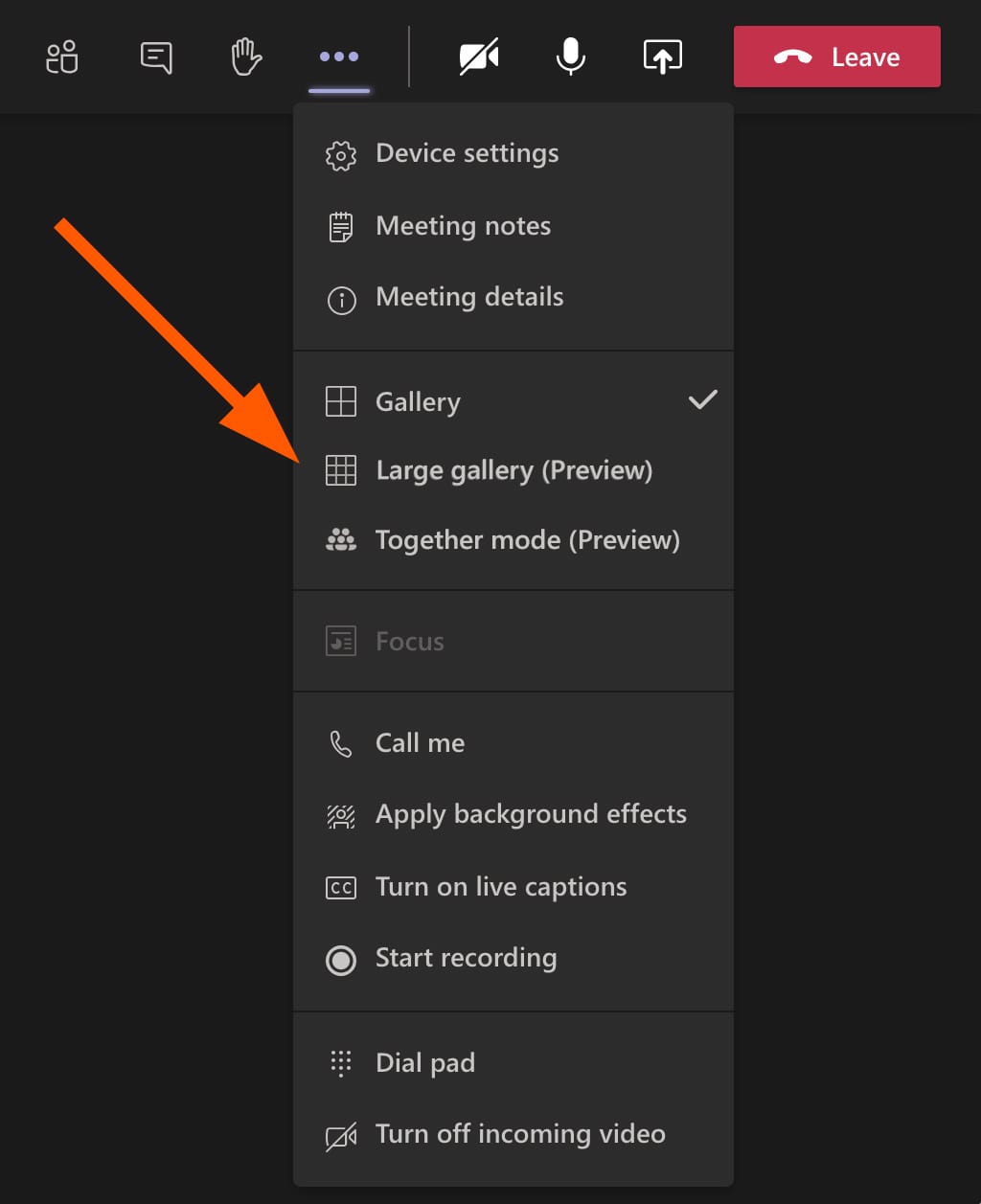
  • With the large gallery view, you can watch up to 49 video streams at a time.
  • "New Meeting Experience" must be enabled before using large gallery view.
  • At least 10 participants must share their video for the large gallery view to be available.
  • During a meeting, select "..." >  select "Large Gallery". If it is not grayed out, it means that there are at least 10 active video streams.

Large gallery viewImage Removed

Expand
titleHow to keep important channels of a team in focus? 
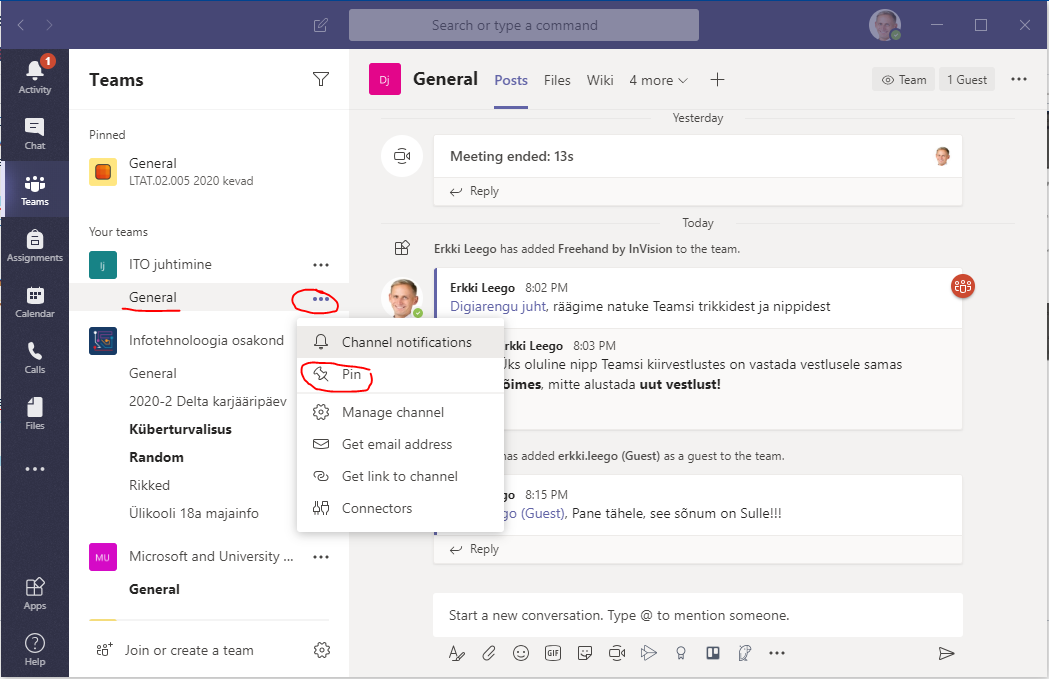
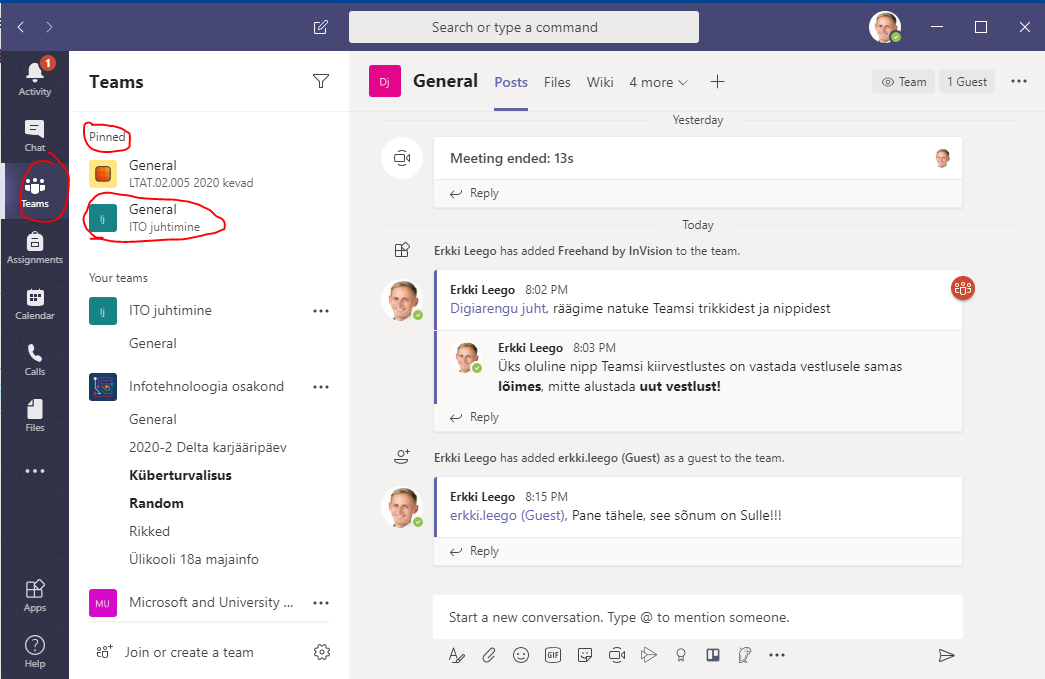
  • MS Teams allows pinning important channels. 
  • Select Pin under “...” next to a channel name.

Image Removed

Image Removed

Teams allows moving important channels to Favourites to display them on top of your Teams list. 

  • Click the three dots (...) → click Move to → select Favourites. 
    Image Added


Expand
titleHow to create workspaces of restricted access to some members within a team? 
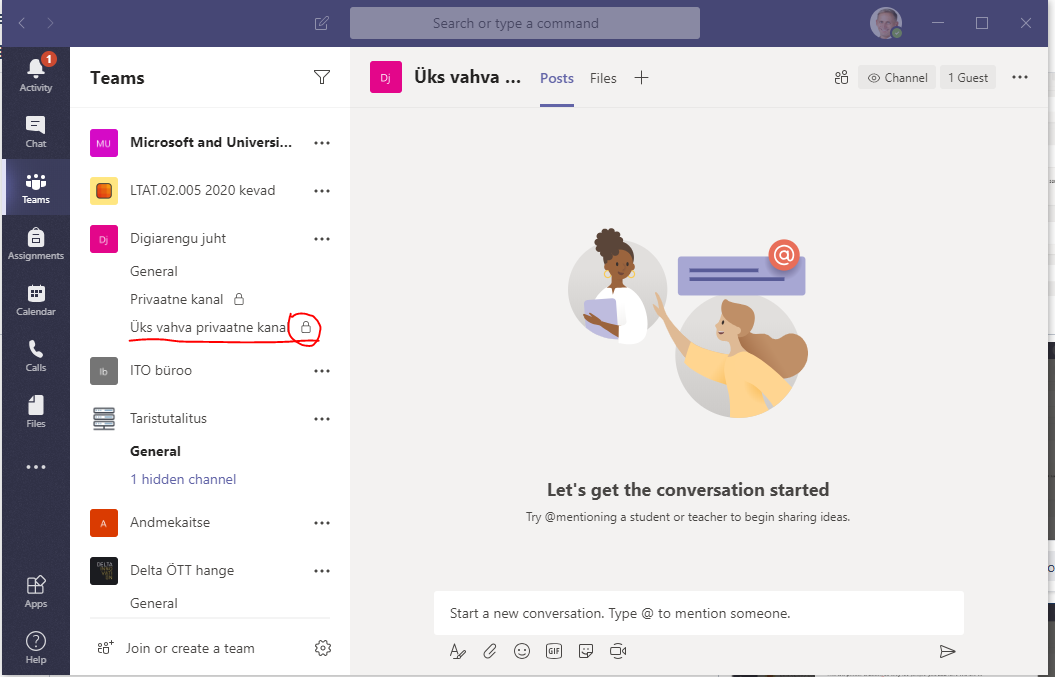
MS Teams allows creating channels with private access

It is possible to create private channels in Teams.
When

you create

creating a new channel, you can choose

to give

whether access is available to the entire team or

only some members. 
  • By default, access is granted to the entire team. 
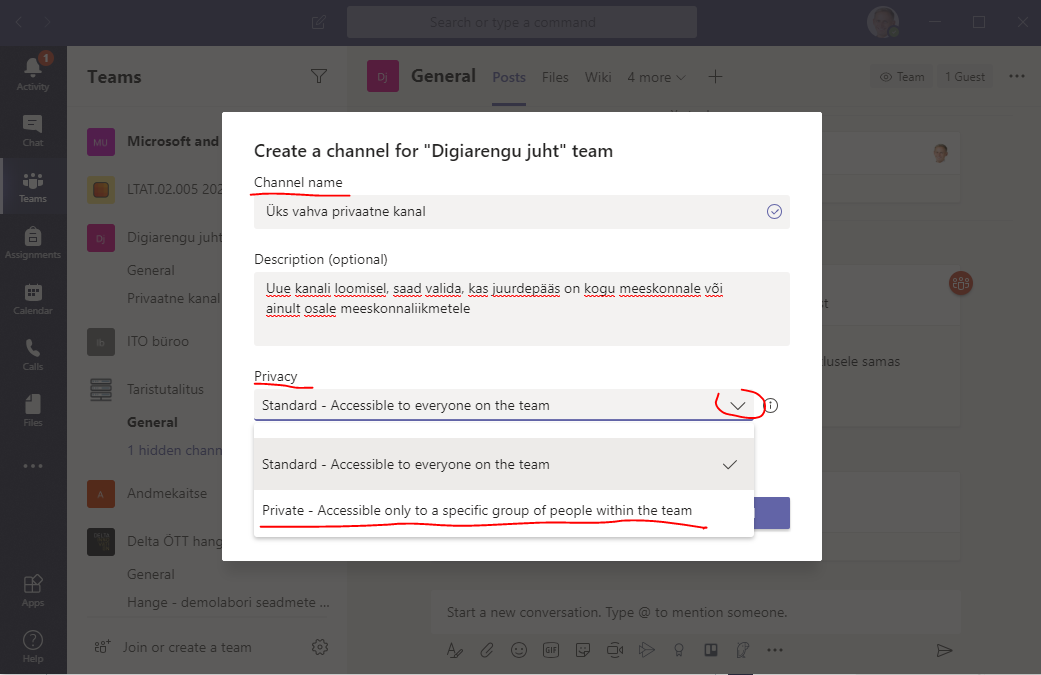
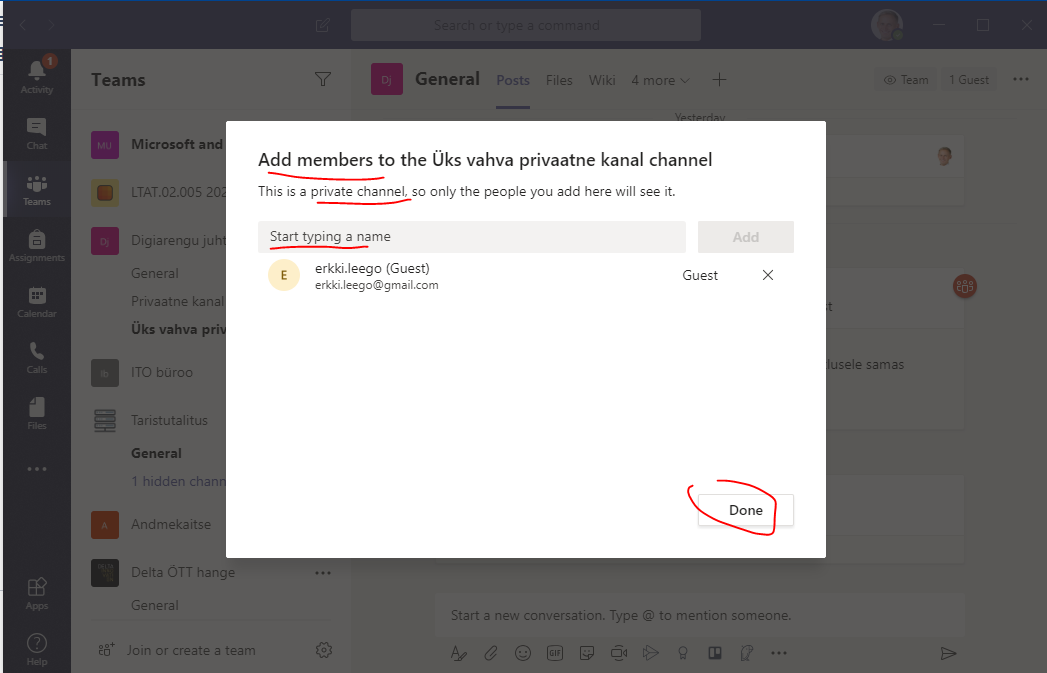
  • Creating a private channel.
    • Click on "...” next to the team name and then Add channel.
    • Insert the channel name.
    • Select Private - accessible only to specific group of people within the team from privacy settings. 
    • Click Next. 
    • Add members and click Done. 
  • Image Removed
    Image Removed

    Image Removed

    Image Removed

    Expand
    titleWhich team type should I choose when creating a new work group?

    only to a part of it. The default is access to everyone.
    To create a private channel:

    • We advise choosing the type Other.
    • If you choose another team type (Class, Staff, etc.), the menu bar of the team will include pre-configured modules you won't probably need (e.g. Staff notebook).
    Image Removed
    • Open the Teams tab → click the Join or create team button and select Create team.
      Image Added
    • When choosing a teamplate, we suggest picking Other. 
      Image Added
    • To confirm, click Use this template.
      Image Added
    • From the window that opens, select Private.
      Image Added
    • Add a team name and click the Create button.
      Image Added
    • To add members, type a name or email address to the box and click Add.
      Image Added


    Expand
    titleHow to share your screen to your conversation partner? 

    Check Screen sharing in Teams.


    Expand
    titleHow to create a new team workspace in MS Teams?

    Check  Creating a team workspace in MS Teams.


    Expand
    titleHow to use MS Teams to organize voting? 
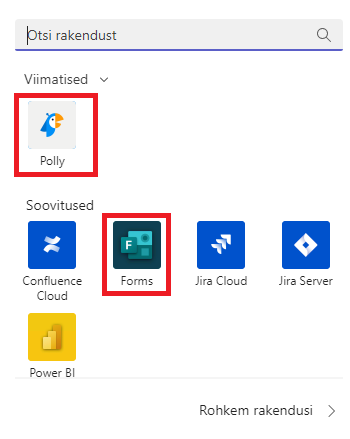
    • MS Teams allows adding modules to be used within team. 
    • MS Forms and Polly are suitable for voting and polls. 
    • Check Organizing a vote in Teams (old)


    Expand
    titleHow to use MS Teams for teaching activities? 


    Expand
    titleHow to archive a team in MS Teams?

    See Archiving a team in MS Teams.


    Expand
    titleWhat happens to our files and groups after the end of the project? 
    • It is wise to archive the workspace when the team workspace is no longer needed. 
    • If a team workspace is deleted, all the content, conversations, etc. created in the team will be lost. 
    • A deleted group can be restored by an administrator within 30 days after deletion. 
      • Contact the IT helpdesk to restore a deleted group.


    Expand
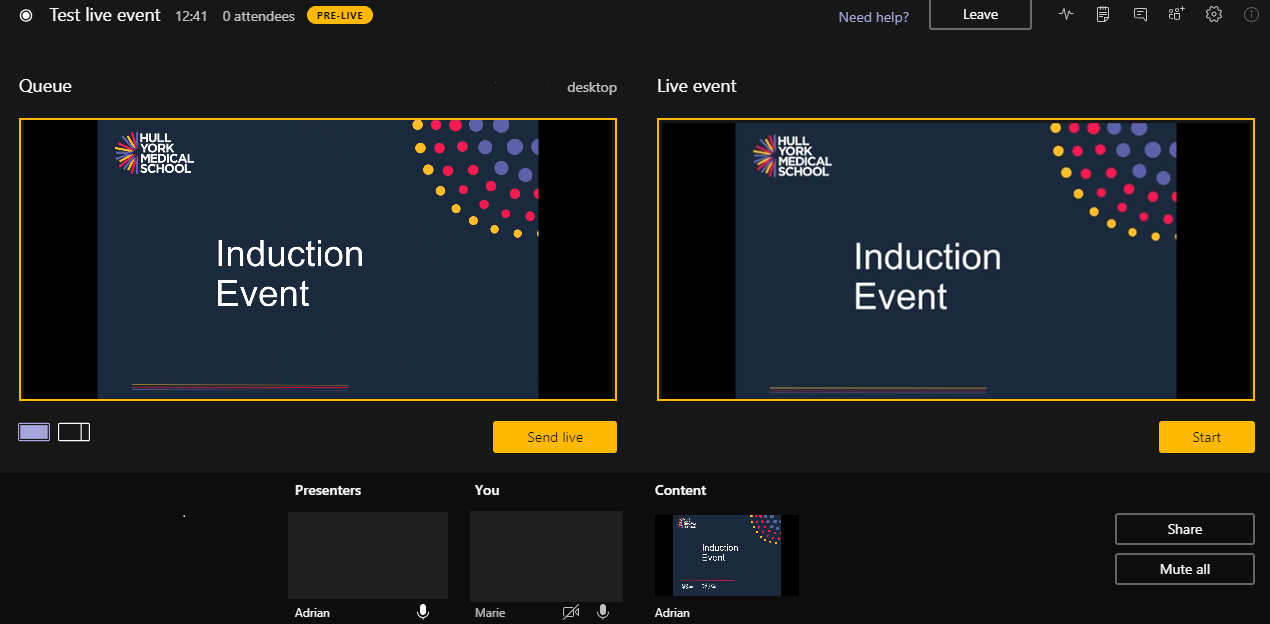
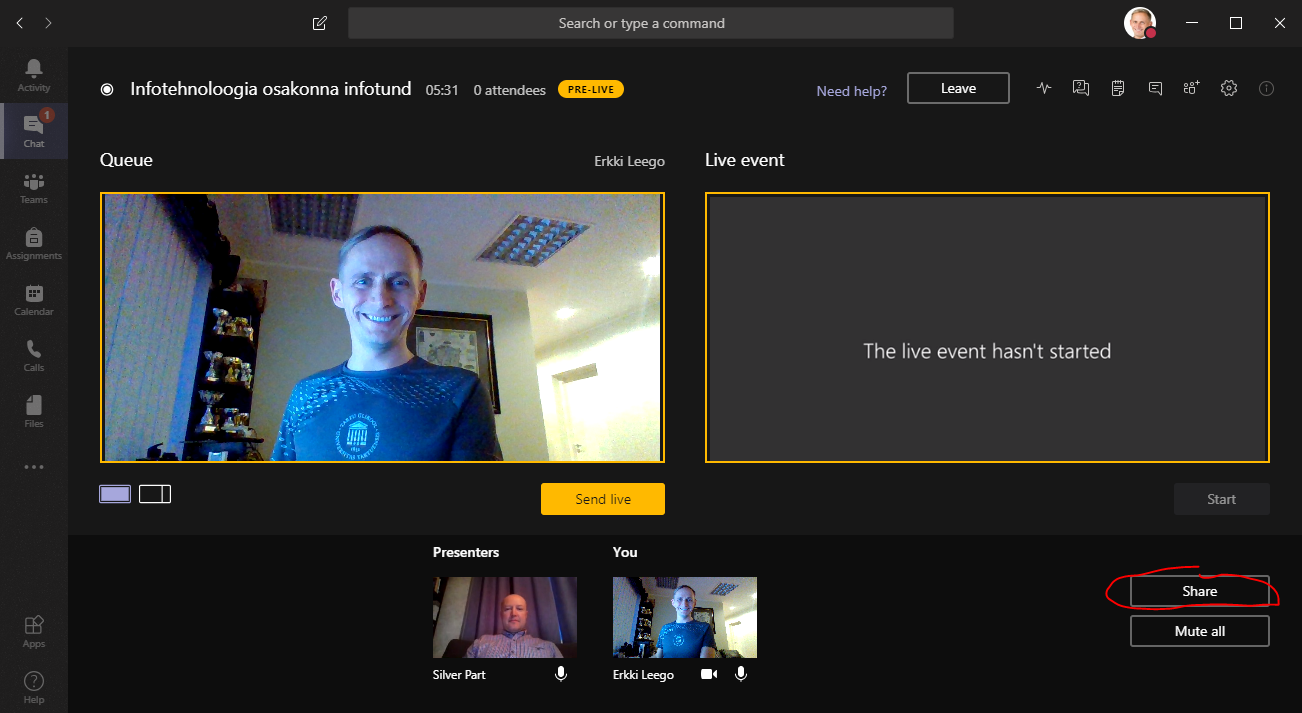
    titleHow to organize a seminar to a large audience using MS Teams?

    Image AddedImage Removed


    Expand
    titleHow to manage work assignments in MS Teams? 

    Microsoft Planner is a task and work management tool integrated into the Microsoft 365 ecosystem that helps teams organize activities, assign responsibilities, and track progress in one central location. With Planner, users can create plans, assign tasks, set deadlines, add comments and files, and gain clear visibility into project status. Its integration with Microsoft Teams enables seamless collaboration, allowing team members to manage tasks and communicate within the same workspace. 

    For more information, see the Microsoft guide: https://support.microsoft.com/en-us/planner/teams/getting-started-with-planner-in-teams

    • An MS Teams chat is not the best option for sending work assignments and requests to others. 
      • Since the main focus of MS Teams is conversations, it is not easy for people to take on assignments from there.
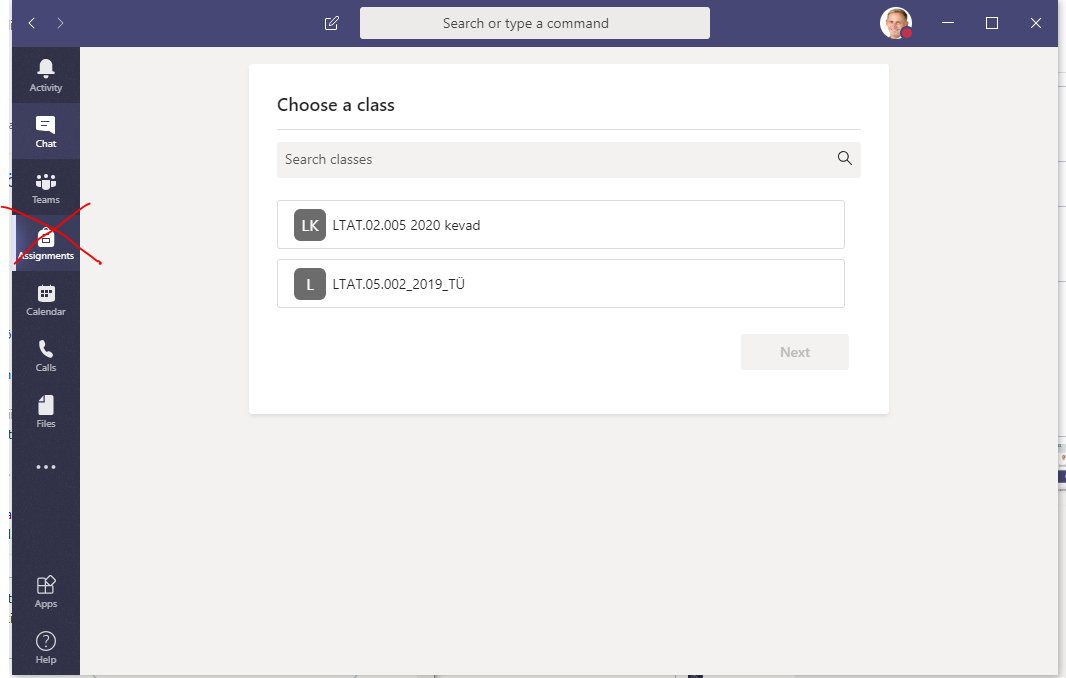
    • The MS Teams menu Assignmentsis meant for teaching activities and is not suitable for managing a team’s work assignments in general.
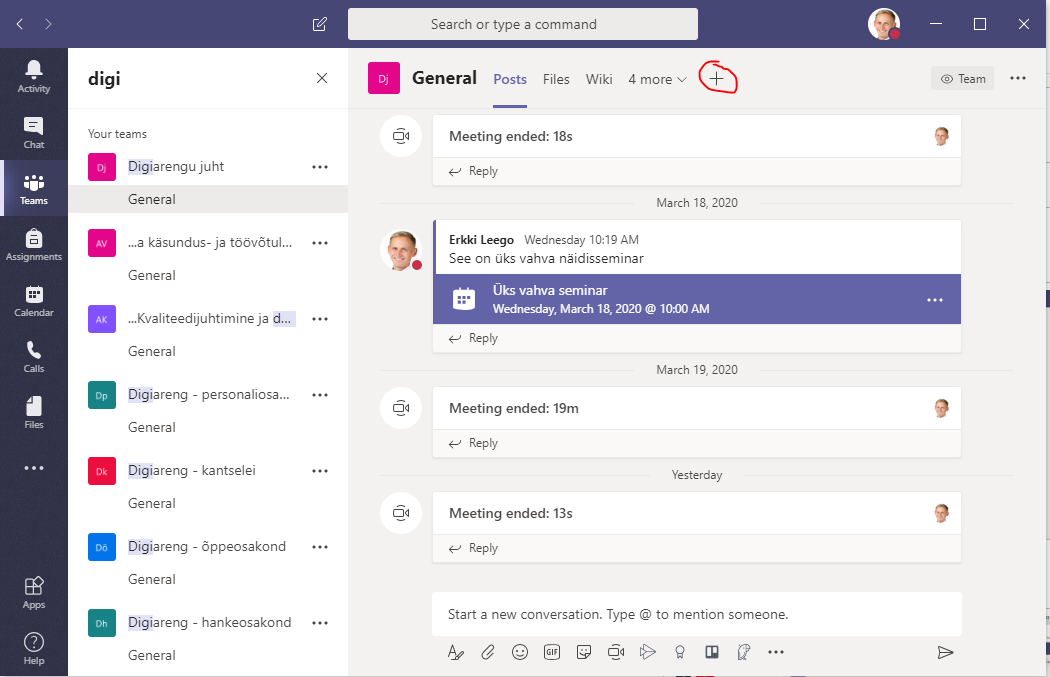
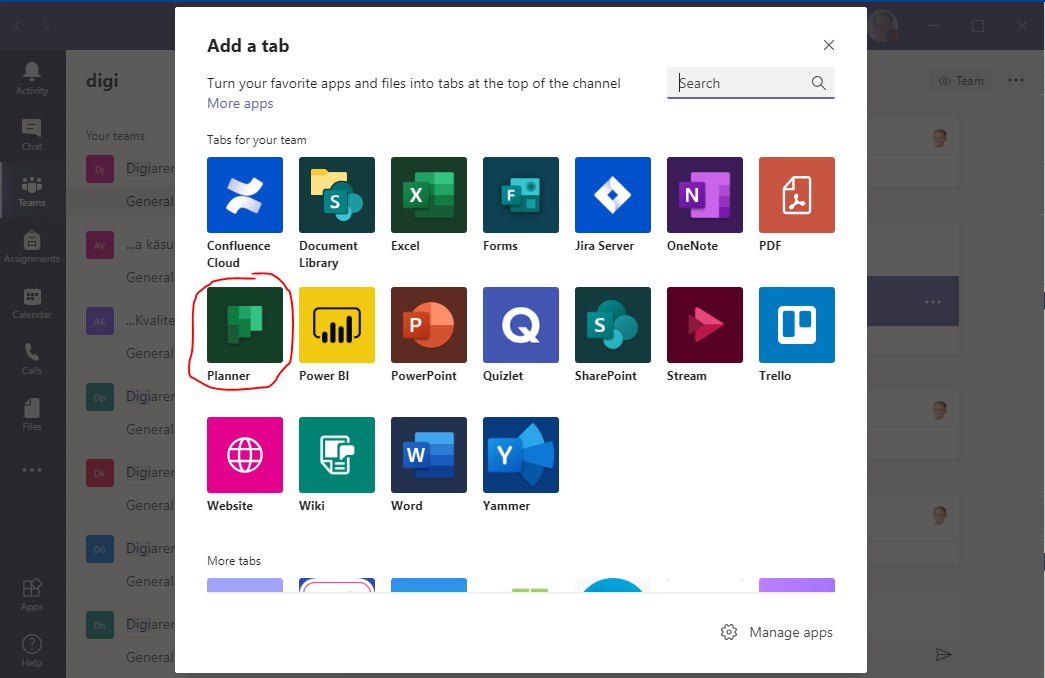
    • A more convenient tool for joint management of work assignments is the Planner that can be added to an MS Teams workgroup as a module.

    Image Removed

    Image Removed

    Image Removed


    Expand
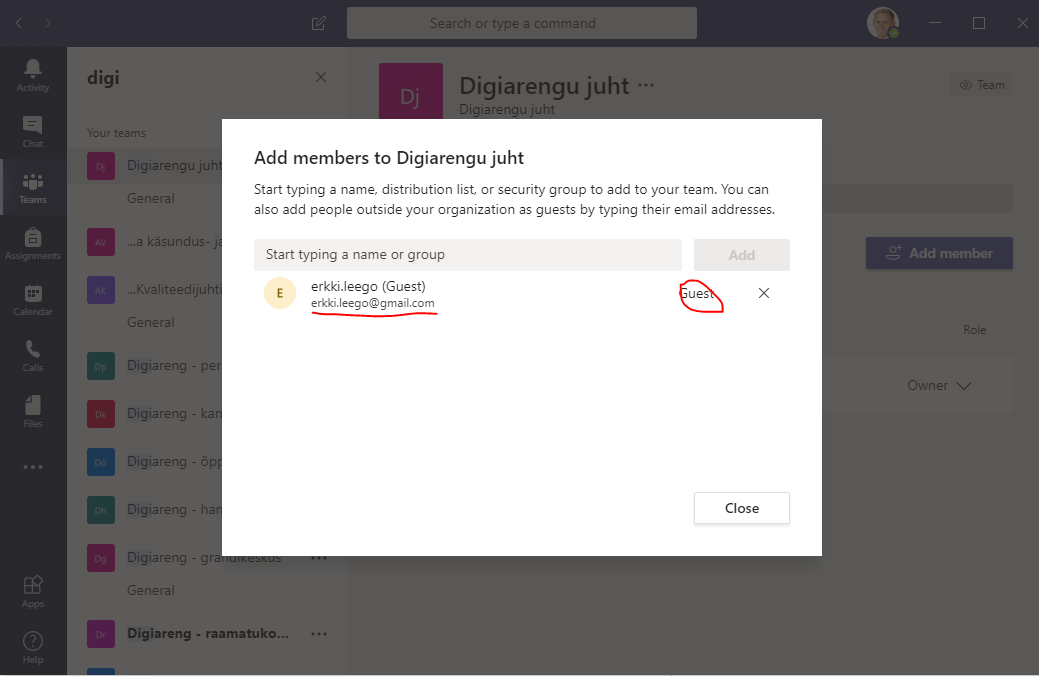
    titleHow to add a team member who does not have a user account of the university? 
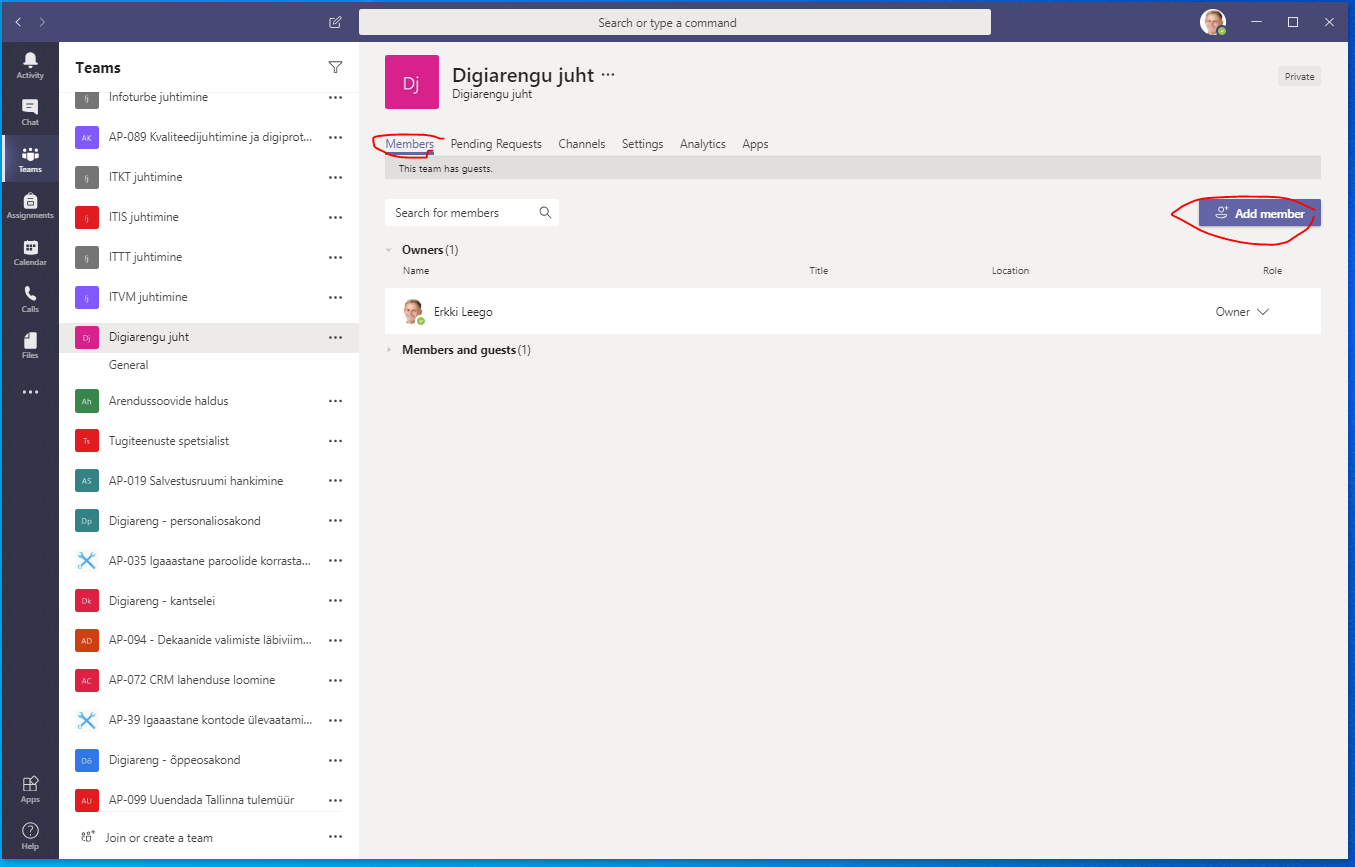
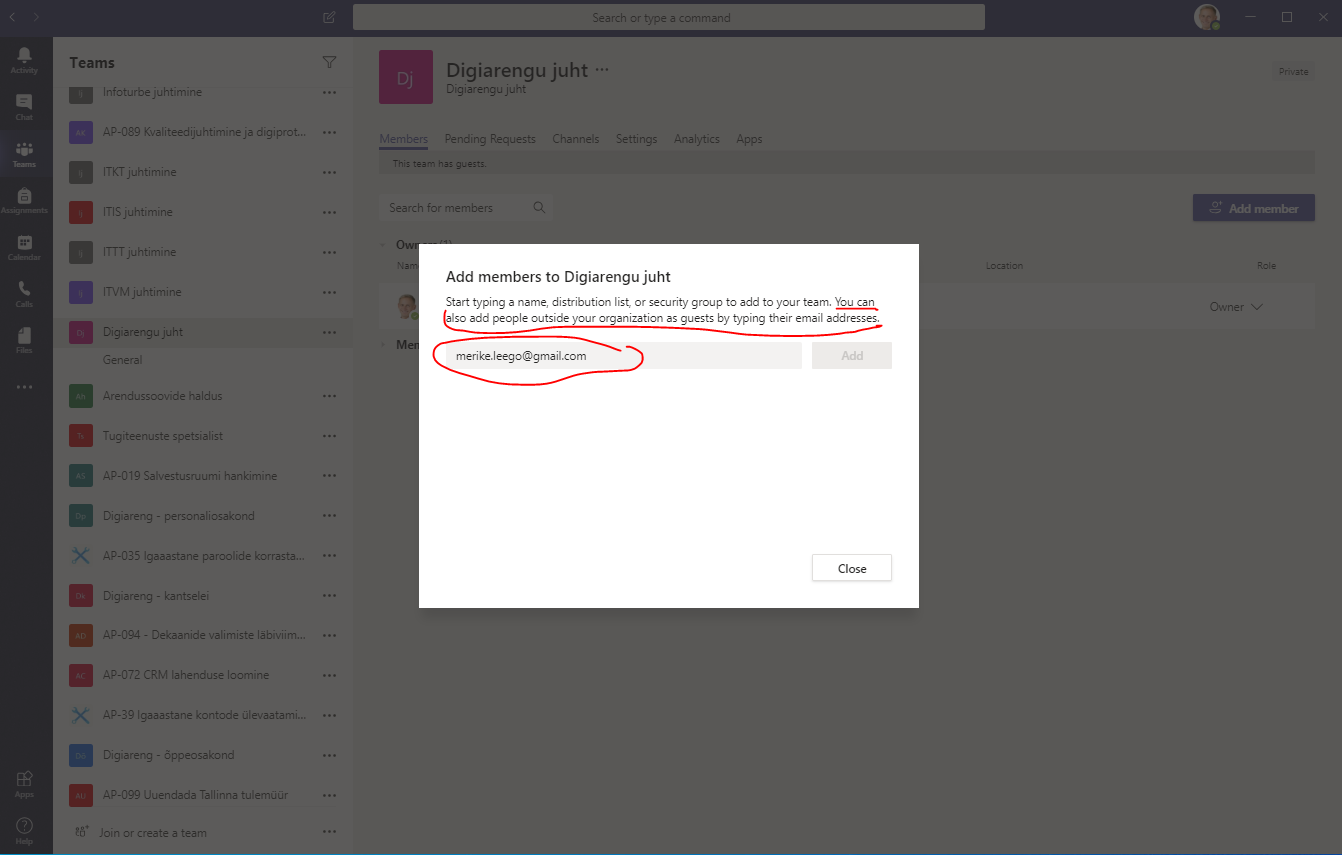
    • An external member can be added to an MS Teams team as a guest, using the person’s e-mail address. 
    • If the person has not used MS Teams before, he/she must first create a free account of MS Teams and can then join the corresponding workgroup. 

    Image Removed

    Image Removed

    Image Removed
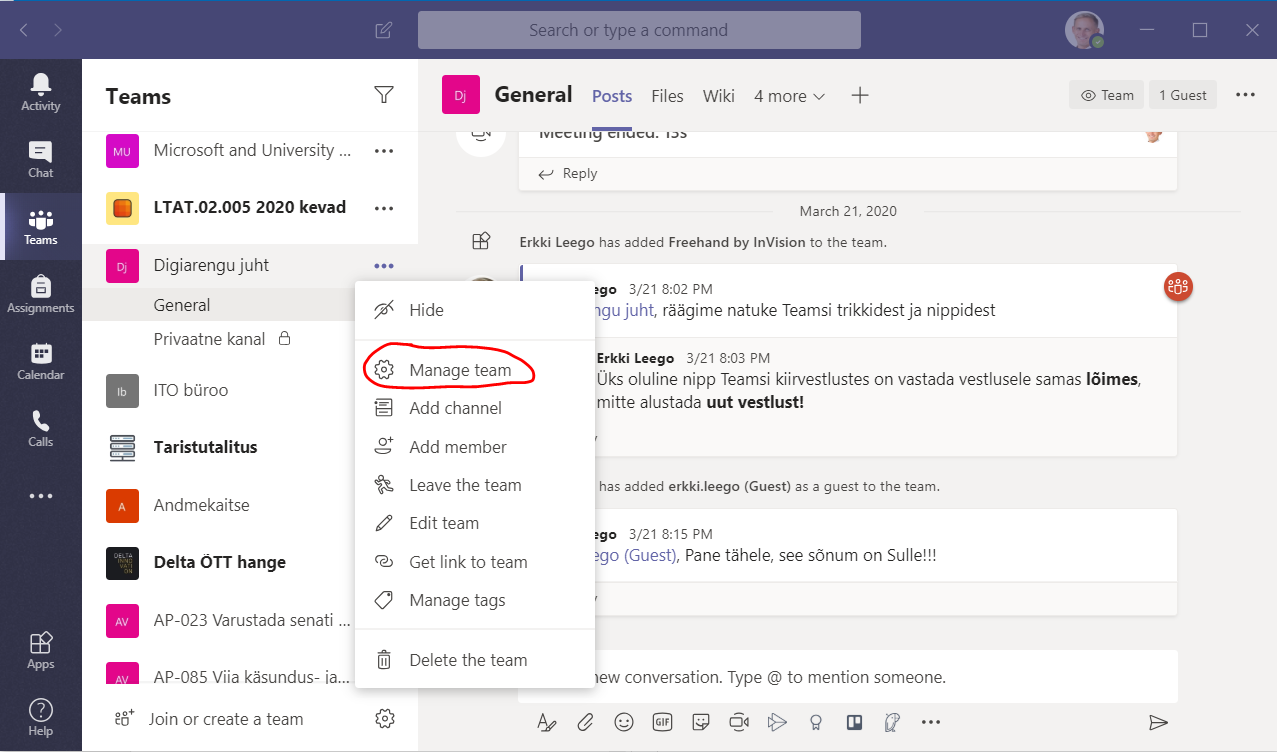
    • Open the Team you would like to add the user → click More settings → select Add member.
      Image Added
    • To add members, type a name or email address to the box and click Add.
      Image Added
    Expand
    titleHow to invite people to join a Teams team using a link?membership after employment ends

    Starting June 11, 2026, Teams team owners will be notified of members whose employment with the university has ended but whose membership in the Microsoft Teams team or its underlying Microsoft 365 group has been retained.

    Upon termination of employment, the user account will be placed in a blocked state. Users in this state may not be visible in the Teams members view as usual, but their membership may still remain. If the same person later returns to the university and their user account is reactivated, they may regain access to the group content.

    Therefore, we recommend that Teams team owners regularly check their team membership and remove members who are no longer eligible to be part of the team. If necessary, membership should be managed in Microsoft 365 group management.

    Info

    In the future, it is planned to automate the removal of users from Microsoft 365 groups and Teams teams in a situation where all their university-related employment relationships have ended. Until this solution is implemented, membership review by team owners will help reduce the risk of unwanted access.

    Expand
    titleHow to invite people to join a Teams team using a link?
    • Open the Team you would like to add the user → click More settings → select Copy link.
      Image Added


    • Click “...” next to the team name.  
    • Select Get link to the team.  
    • Select Copy.  
    • You can share the copied link through other channels.  
    • The team owner needs to accept the requests sent through the link.  
      • Manage Team → Pending Requests → Accept.  
    • Tip: if you want people with the link to join the team right away, without the acceptance, you can create a team code: 
      • Manage Team → Settings → Team code → Generate.  
      • You can share this code together with the invite link via other channels. 

    Image Removed
    Image Removed

    Image Removed

    Image Removed

    Generating a Team code:

    Image Removed

    Expand
    titleHow to prevent the deletion of entries in the team conversations of MS Teams? 
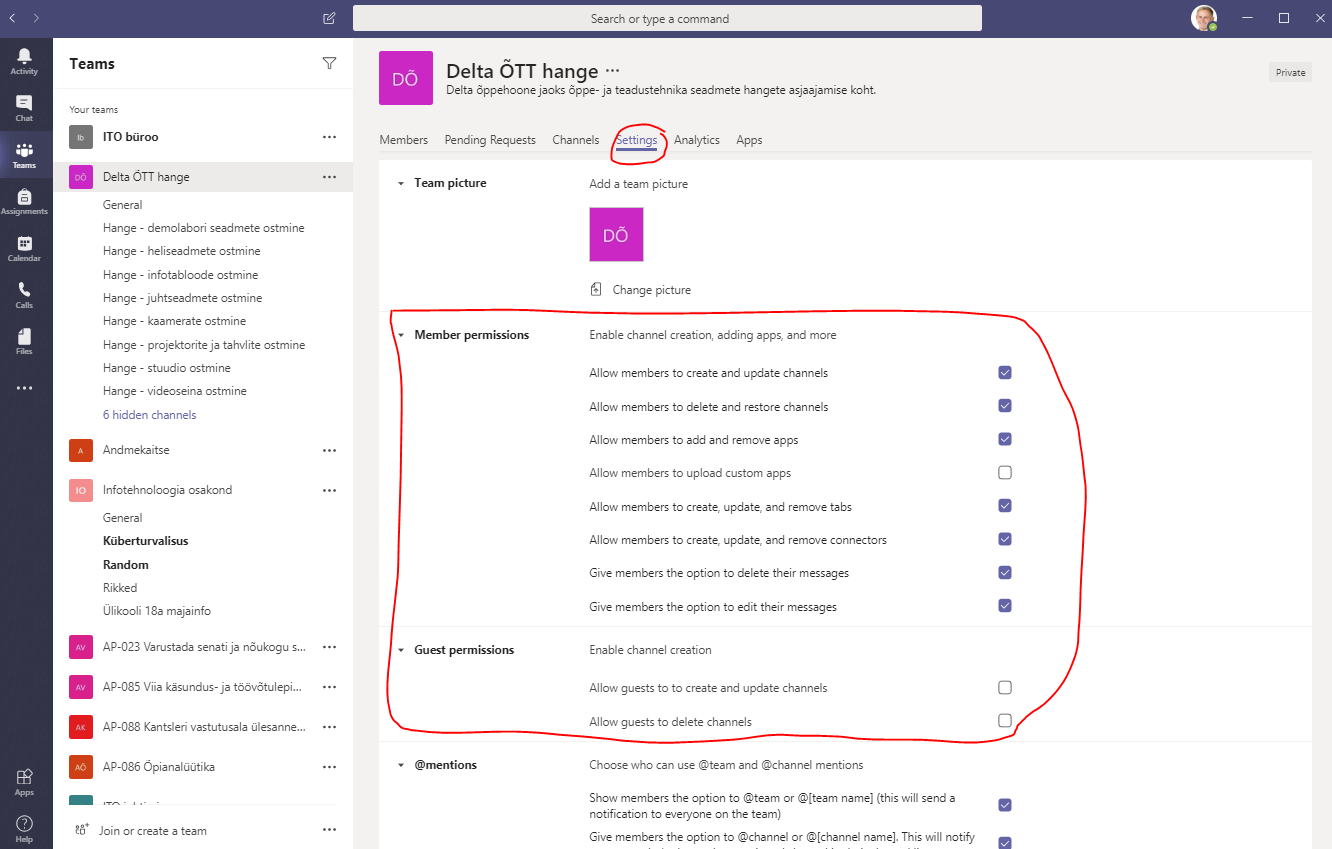
    • MS Teams allows configuring the rights of the team members to create and delete elements of the workgroup. 
    • The following elements can be managed:
      • Allow members to create and update channels. 
      • Allow members to delete and restore channels. 
      • Allow members to add and remove apps. 
      • Allow members to upload custom apps (by third parties). 
      • Allow members to create, update and remove tabs. 
      • Allow members to create, update and remove connectors. 
      • Give members the option to delete their messages.
      • Give members the option to edit their messages.
      • Allow guests (members outside the university) to create and update channels.
      • Allow guests to delete channels.

    Image Removed

    Multimedia
    date// FAQ - Teams tips and tricks
    nameTeams - töörühma elemendid.mp4
    width100%
    height100%

    Expand
    titleHow to discuss a document in an MS Teams team? 
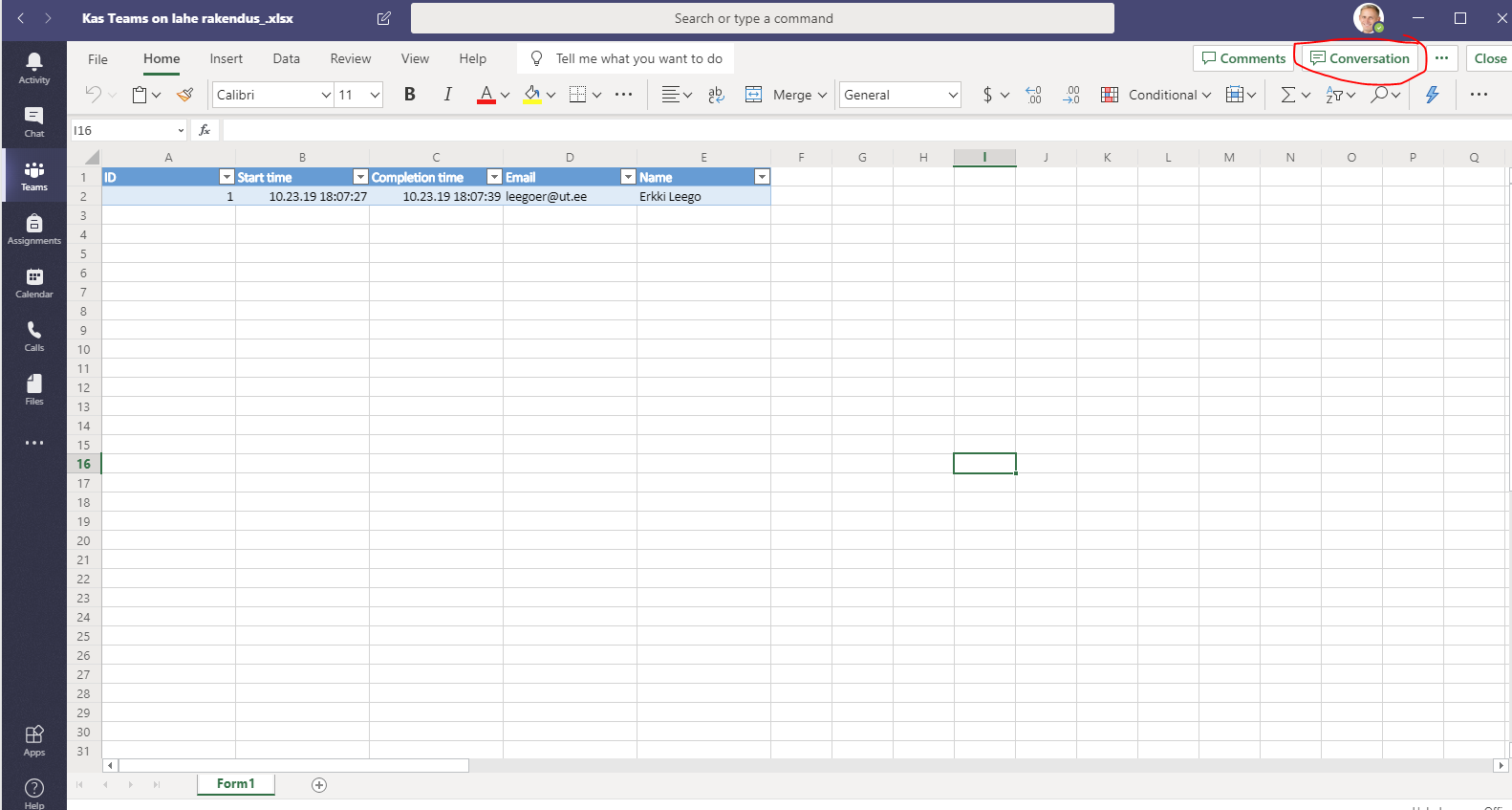
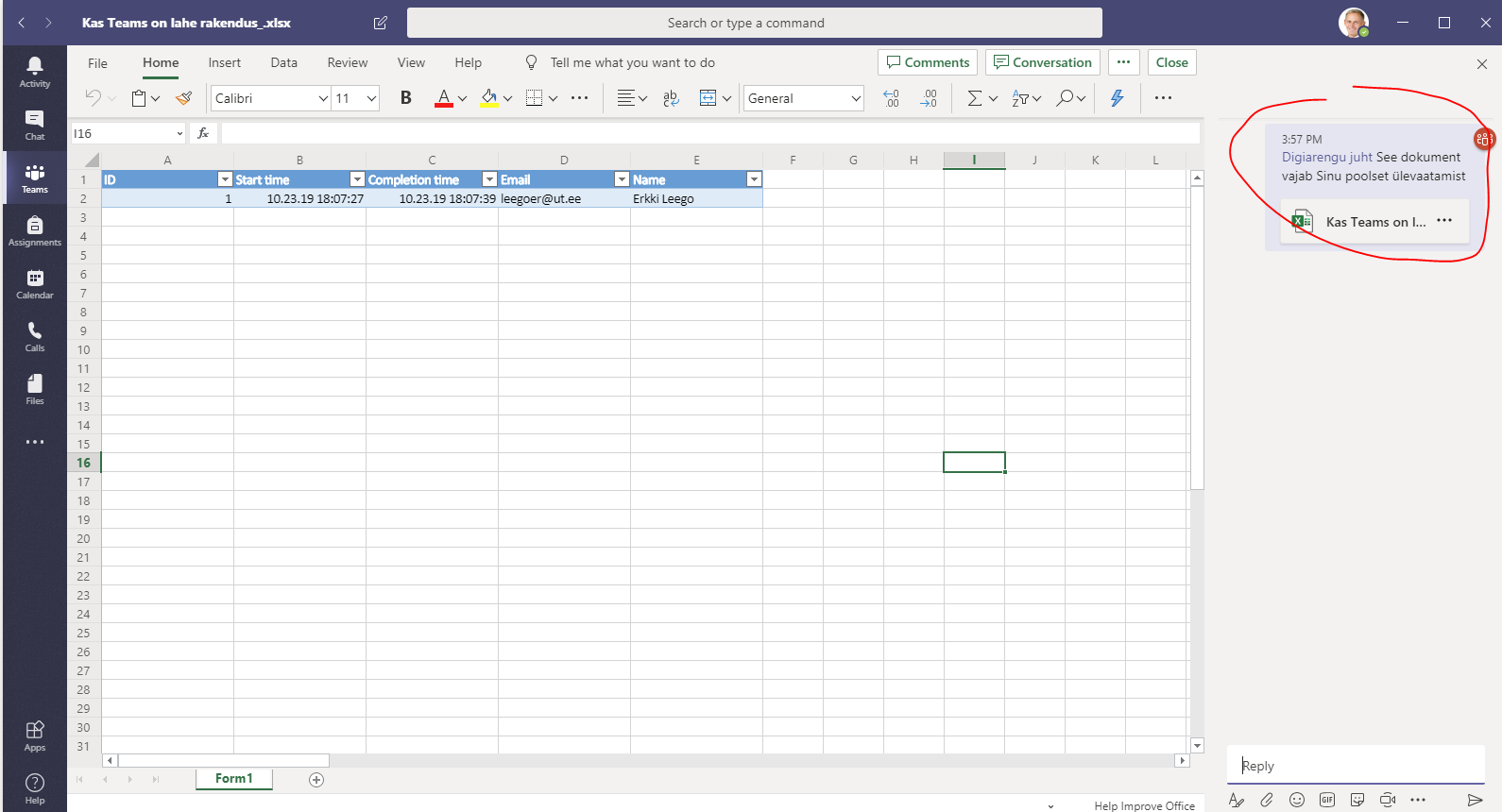
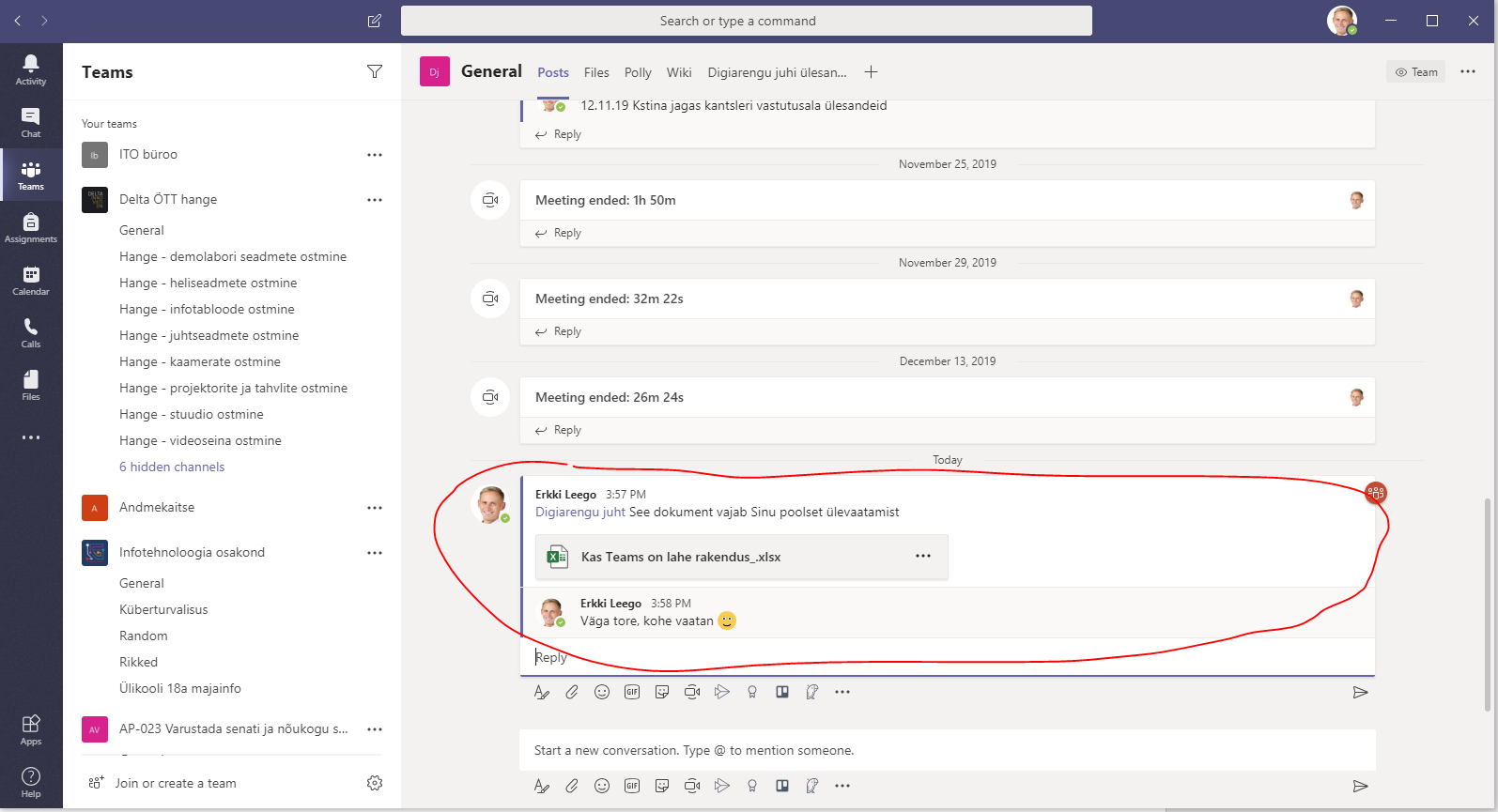
    • It is possible to discuss a document in MS Teams - share additional comments, assign tasks, etc. 
      • Select the function Conversation.
    • The conversation is visible also in the main chat view. 
    • Please note! This function only works with documents added to MS Teams. 
      • External resources (e.g. a Sharepoint folder) do not support the Conversation function. 

    Image Removed

    Image Removed

    Image Removed

    Expand
    titleHow to quickly switch between Microsoft online applications? 
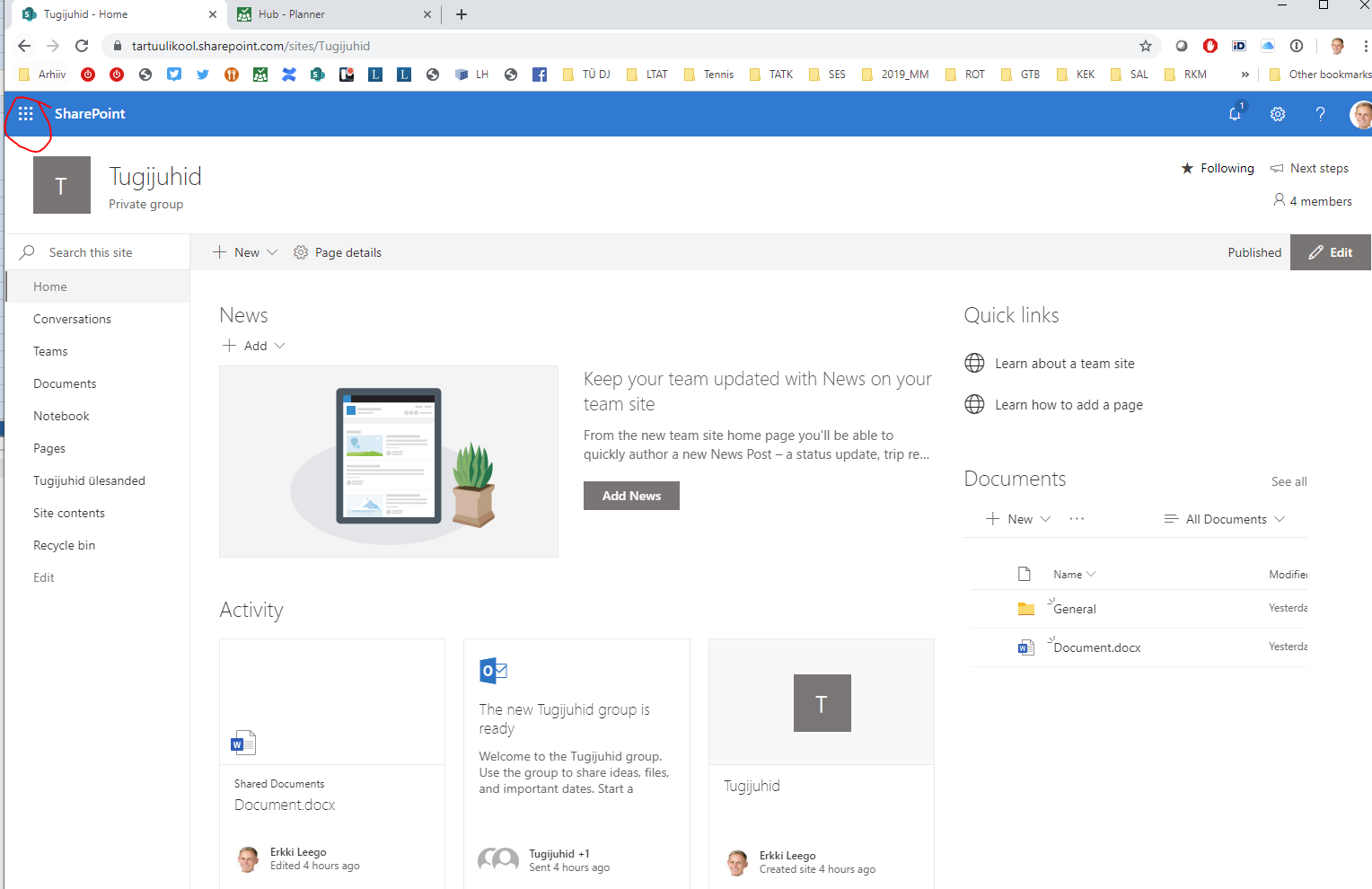
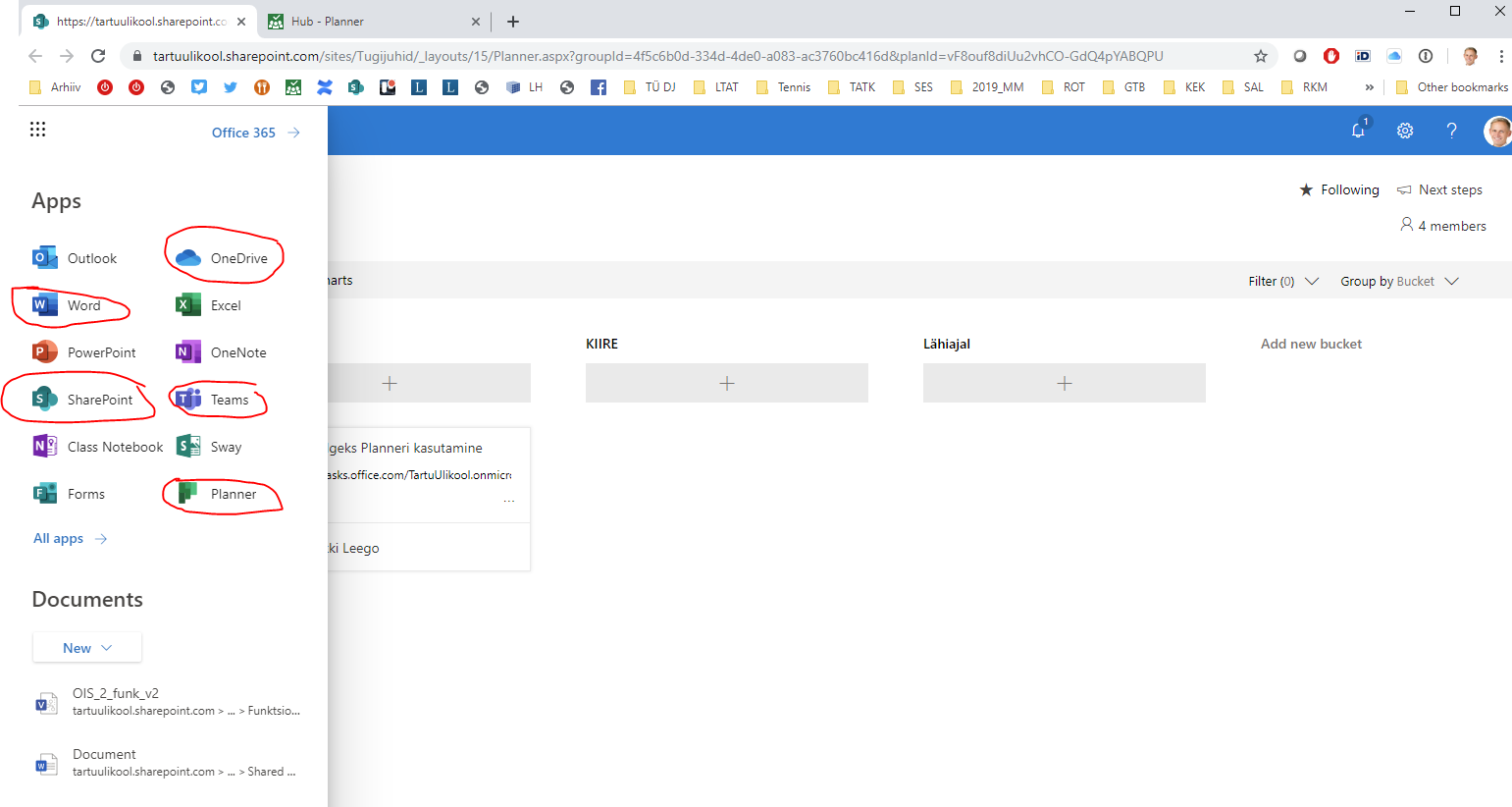
    • Each MS O365 online application has a button of nine dots in the top left corner. Clicking on it opens a menu of different MS O365 applications.

    Image RemovedImage Removed

    Expand
    titleWhy don’t I get notifications about new posts in Teams groups?
    • By default, notifications are disabled in Teams groups. Generally, it is reasonable to turn them on.  
    • It is important to use the @ mark before a member’s or team’s name in messages to call their attention@name, @channel, @team. This way the person or the group will get a notification. 

    Multimedia
    date// FAQ - Teams tips and tricks
    nameTeams - märguanded.mp4
    width100%
    height100%

    • Open the Team you would like to add the user → click More settings → select Manage team.
      Image Added
    • Click the Settings tab.
      Image Added
    Expand
    titleI hate the default theme in Teams. How can I change it? 
    1. Click your profile picture in the Teams window. 
    2. Select Settings. 
    3. In the General menu you can choose between three themes: Default, Dark or High Contrast. 

    Multimedia
    date// FAQ - Teams tips and tricks
    nameTeams - kujundus.mp4
    width100%
    height100%

    Expand
    titleScreen sharing stops working after updating MacOS Catalina
    • Problem: Screen sharing does not work after MacOS Catalina update. 
    • Solution: Select System Preferences -> Security & Privacy, under Privacy find “Screen Recording” and allow Teams.

    Also check the Microsoft forums.

    1. the three dots (...) button for More settings → select Settings.
      Image Added
    2. In the window that opens, select Appearance from left-side tab and click the button next to Theme to select a theme.
      Image Added
    Expand
    title
    Expand
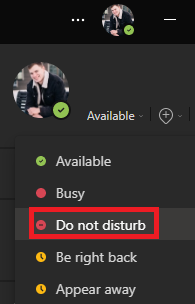
    titleDuring a meeting chat preview windows pop up.

    Set the account status to Do Not Disturb.

    Image RemovedImage Added

    Expand
    titleOpen screen share as a pop out window

    When attending a meeting, you can open the shared screen by the presenter. 

    1. To do this, click click the Pop outbutton on the menu panel.
    2. The shared content appears in a separate window that you can conveniently place anywhere on your screen (e.g. move to another screen, change size, etc.)