
In this guide, you will find instructions on how to set up two-factor authentication for a Google account

How to set up two-factor authentication
- Open the website https://accounts.google.com.
- Log in if needed (for more information, check Google Account).
- From the menu on the left, click Security.

- Click on the 2-Step Verification button.
If the session has expired you will be forwarded to the SSO page of the University of Tartu for authentication.
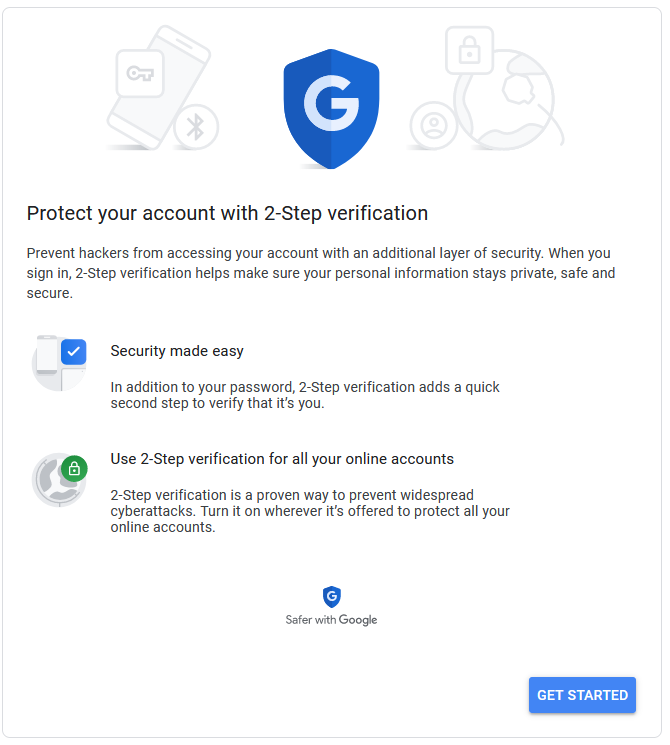
- In case two factor authentication has not been previously configured, on the next screen, click on Get Started.
- Enter the phone number you wish to use for two-factor authentication and choose whether to receive text messages or phone calls, after which click Next.
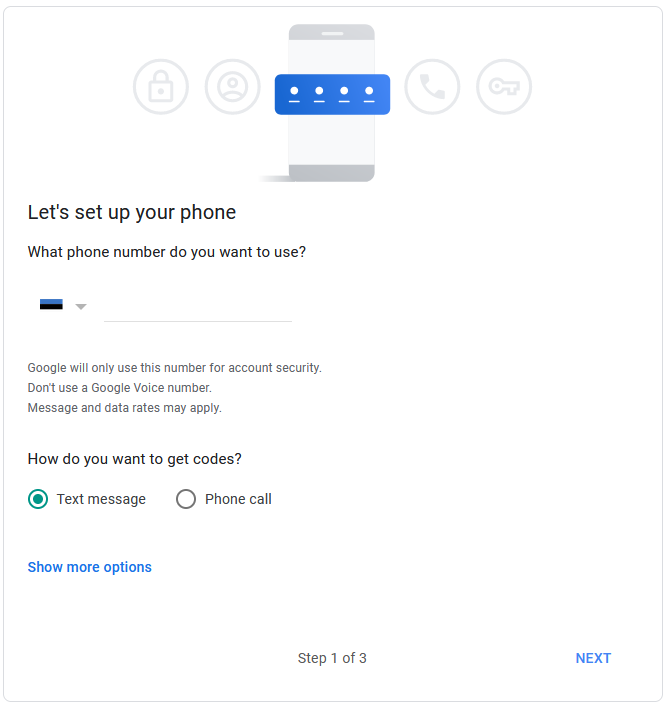
- The Show more options button allows the use of a Security Key or Google prompts options as well, but:
- The University of Tartu does not provide the keys.
- Using Google prompts requires you to be logged in to a smart device with the Workspace account.
- The Show more options button allows the use of a Security Key or Google prompts options as well, but:
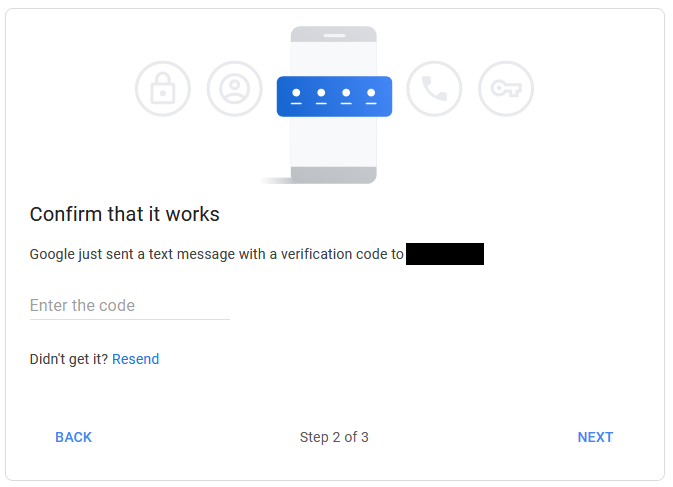
- Enter the code you received via SMS or the phone call into Enter the code field and click Next.
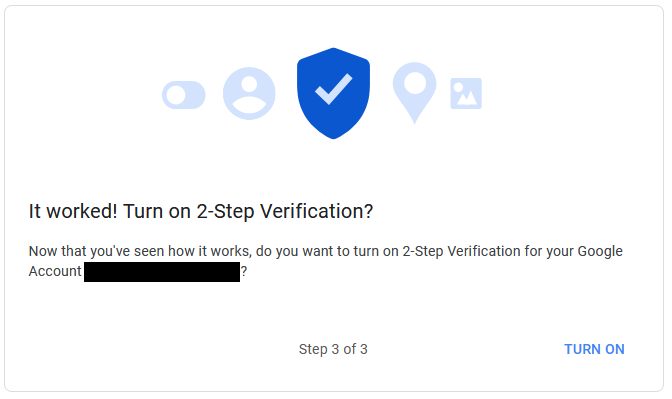
- Click the Turn on button.
- The next screen allows you to set up more options for authentication
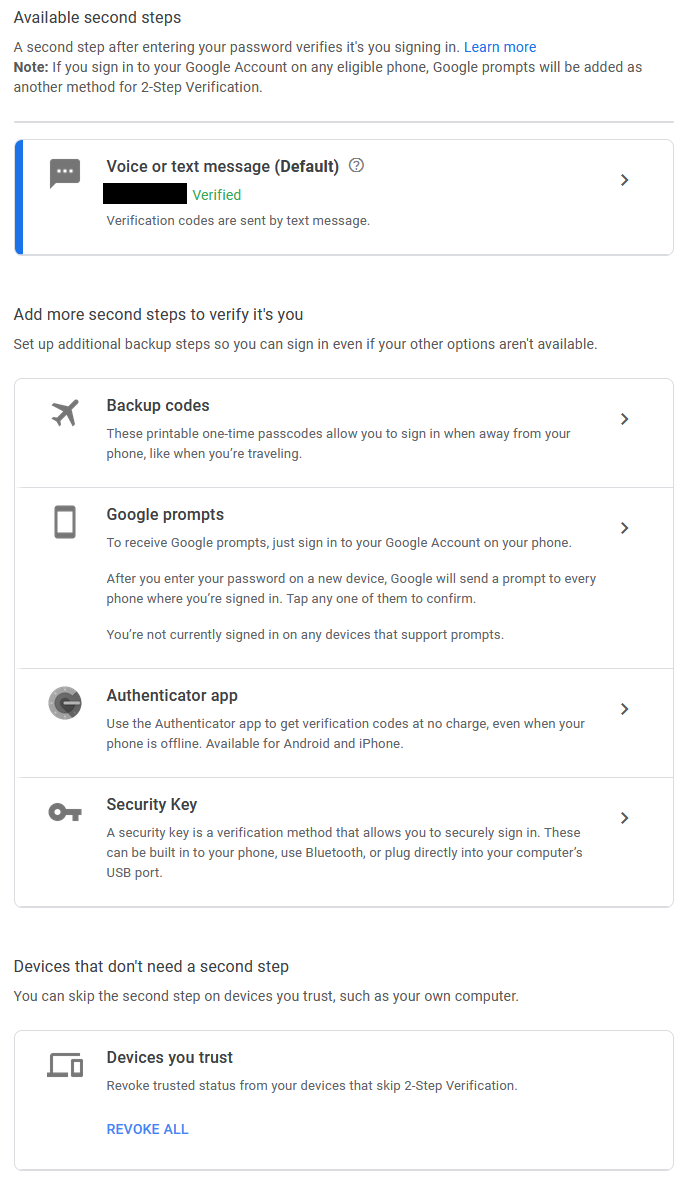
- Backup codes: 10 one-time passcodes are generated
- Google prompts: if logged in to a smart device with the Workspace account, it is possible to confirm new logins from that device
- Authenticator app: a free app that generates a verification code after every 30 seconds
- It is possible to use the Microsoft Authenticator app as well
- Security Key: a physical security key
- It is recommended to activate at least two options, one of which should work even in the case of loss of a smart device, voice/text message, for example.
This page has no comments.