
In this guide, you will find instructions for connecting via EduVPN on a Windows operating system device.

Guides
- In order to open the Software Center, you can use the Start menu or search::
- Using the Start menu:
- Click the Start menu icon in the bottom-left side of your screen.

- Type Software Center and open the application by clicking on the Software Center icon.
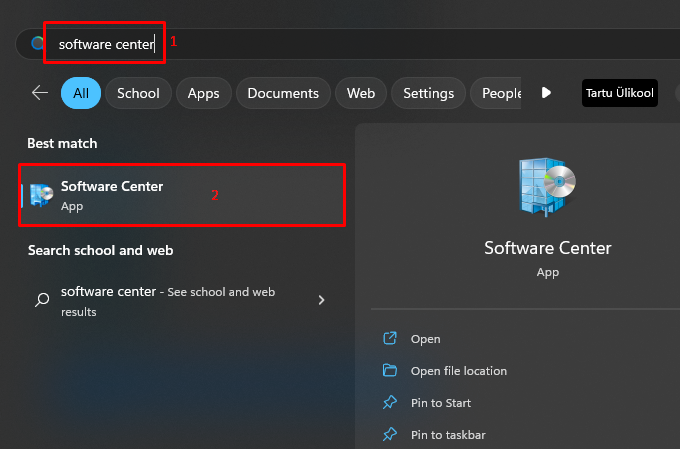
- Click the Start menu icon in the bottom-left side of your screen.
- Using Search:
- Type Software Center into the search bar on the bottom-left of your screen.
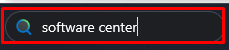
- Open the application by clicking the Software Center icon.
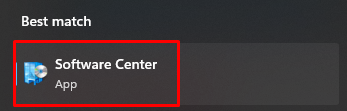
- Type Software Center into the search bar on the bottom-left of your screen.
- Using the Start menu:
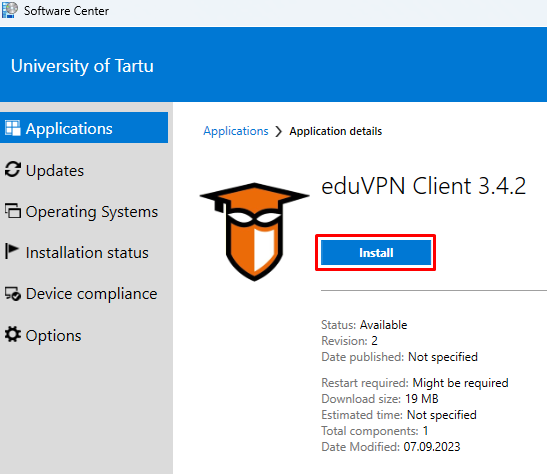
- From the applications list, select GlobalProtect.
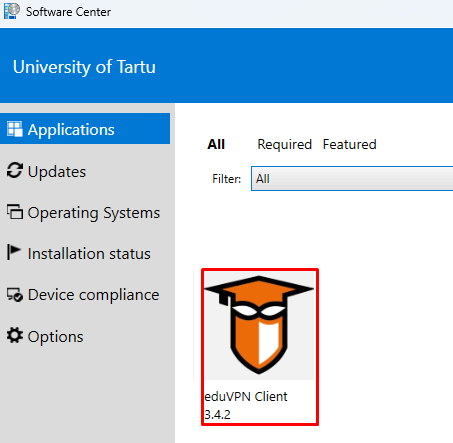
- To start the installation process, click the Install button.
- EduVPN has been successfully installed!
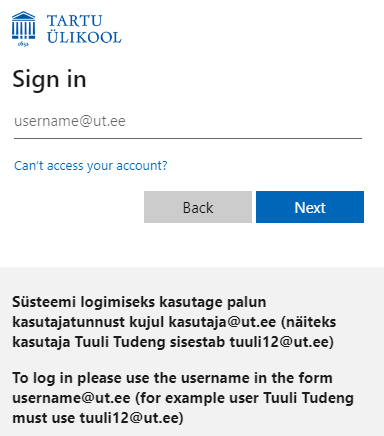
- In your web browser, open https://eduvpn.ut.ee.

- Enter the username and password of your University of Tartu account (login with username and password).
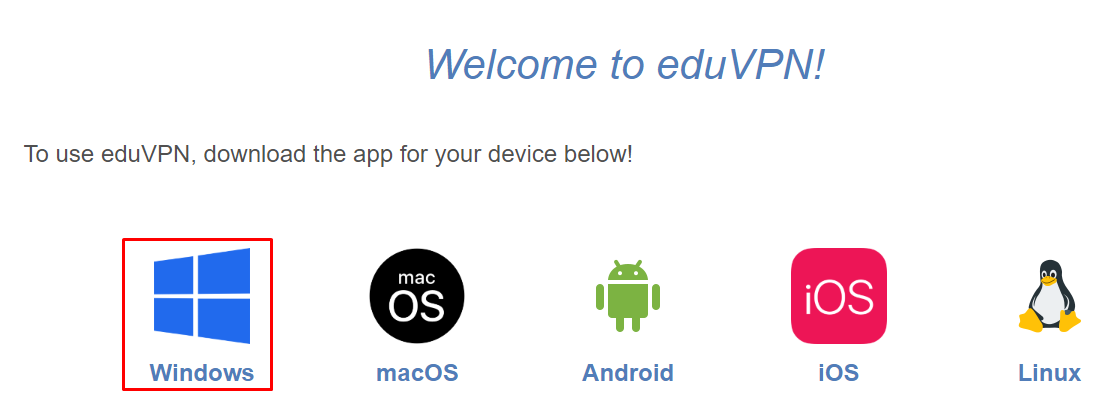
- Download the Windows installation package.
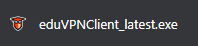
- Run the installation package downloaded to your computer.
- To install, press the Install button.
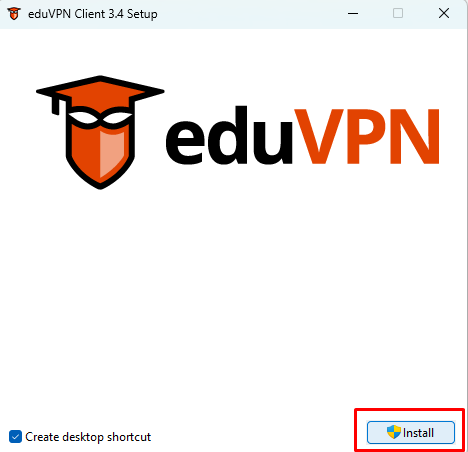
- After a successful installation process, press the Launch button.
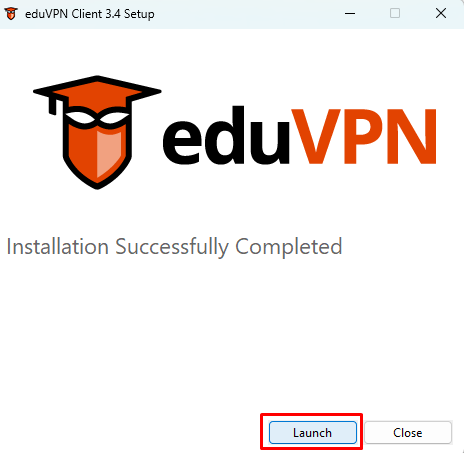
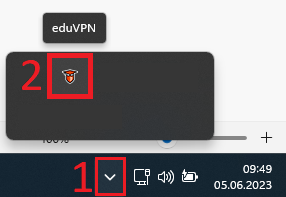
- Open the EduVPN software.

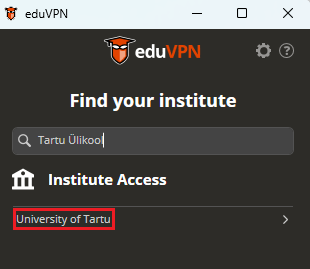
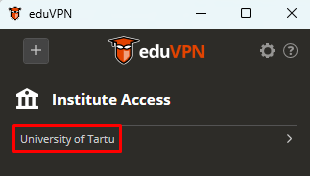
- Enter University of Tartu or UT in the search and click on University of Tartu under Institute Access.
- In the window that opens in the web browser, click the Approve button to allow the eduVPN connection.
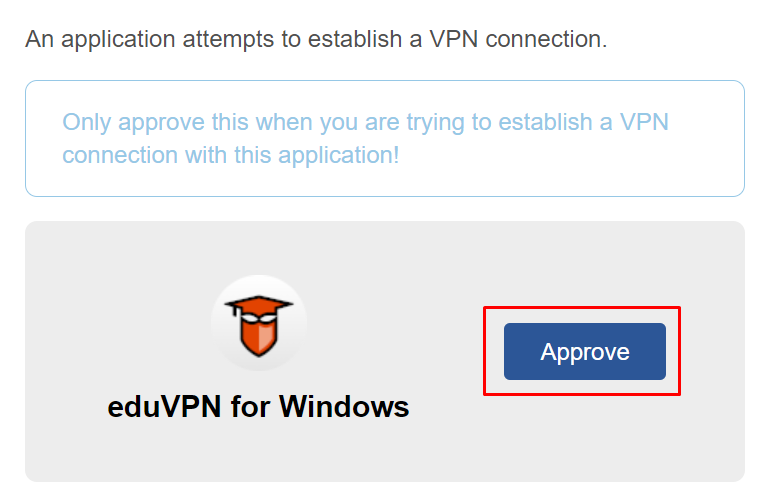
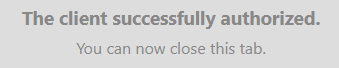
- EduVPN client has been successfully approved.
- To connect, open the eduVPN Client application.
- Select University of Tartu.
- From the PROFILES drop-down menu, select:
More information about Full tunnel and Split tunnel can be found in the guide VPN.
- Full tunnel: all internet traffic is routed through a VPN (suitable for best security, access to UT databases)
To establish a connection, click the gray slider button.
- Split tunnel: only traffic related to the UT network goes through the VPN, other traffic goes directly to the internet (suitable for everyday use)
From the drop-down menu → press the gray slider button to connect.
- Full tunnel: all internet traffic is routed through a VPN (suitable for best security, access to UT databases)
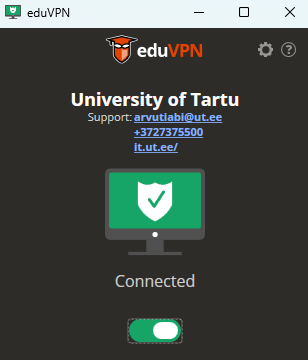
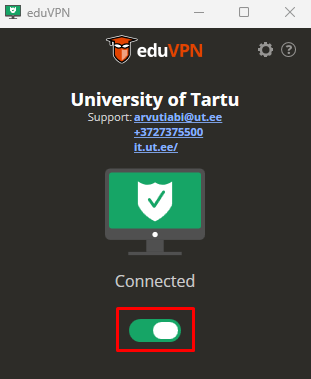
- EduVPN is successfully connected when the icons turn green.
- To disconnect, open the eduVPN client application.
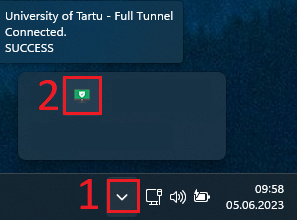
- Press the green slider to disconnect.
This page has no comments.