
This guide provides instructions on how to set up Microsoft Outlook on a Windows operating system.

When using cloud service, applying two-factor authentication is mandatory: Activating two-factor authentication.
NB! Make sure your software is updated to the latest version.
Setup
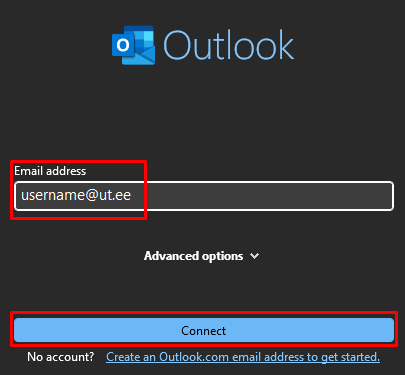
In the window that opens, enter your UT username (format: username@ut.ee) and click the Connect button. For additional information, check User account.
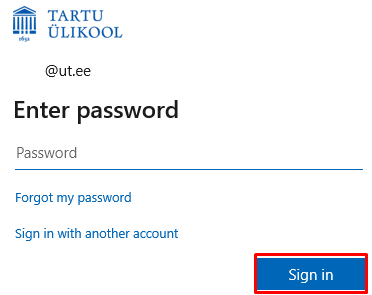
Enter the password associated with your account and click Sign in.
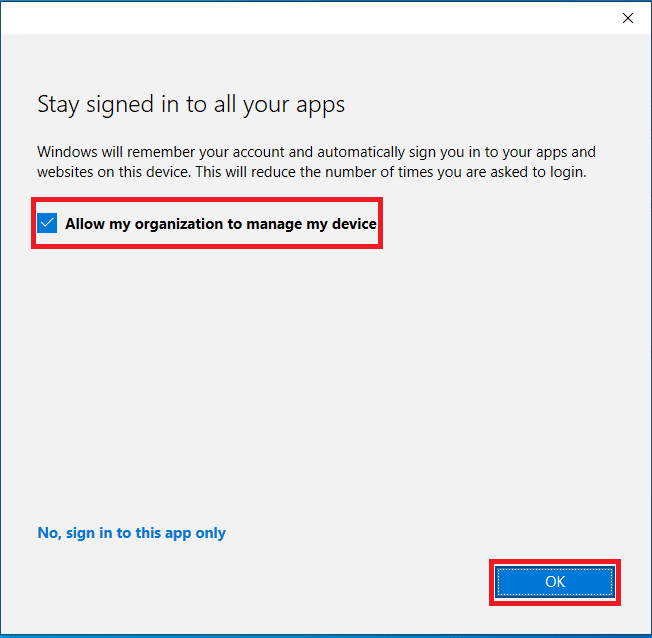
- Make sure Allow my organization to manage my device is enable and click the OK button.
- Outlook has been set up successfully, click Done to finish.
This page has no comments.