
In this guide, you will find instructions on how to access shared mailboxes in Outlook.

Guides
In the installed software version of Outlook the shared mailbox will be connected automatically.
For example in the picture shown below, there is another mailbox named Shared mailbox.
- Open Outlook and click on Tools button.

Click on the Accounts button.
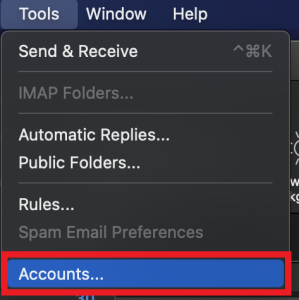
Click on Delegates & Sharing

Click Shared With Me and then the “+” icon below.

- In the text field, enter the desired mailbox address and click the Add button in the bottom-right corner.

- In the web browser, first login. Once logged in, right click on the Folders button and select Add shared folder.
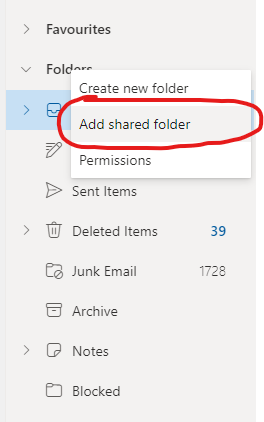
- Enter the e-mail address of the shared mailbox and click Add.
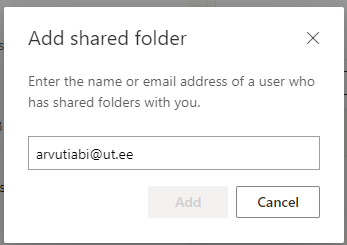
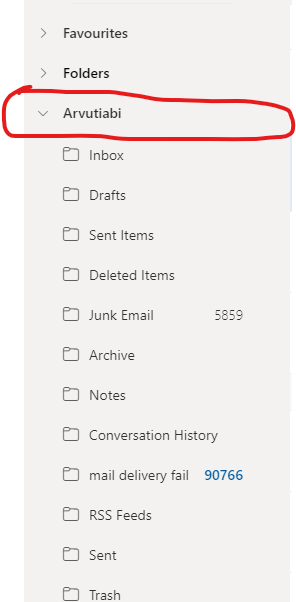
- Mailbox should now be visible by name and by clicking on it, folders of the mailbox will appear.
- To send e-mails from the shared mailbox as a sender.
- Start typing a new message and click on the three dot button and select Show From.
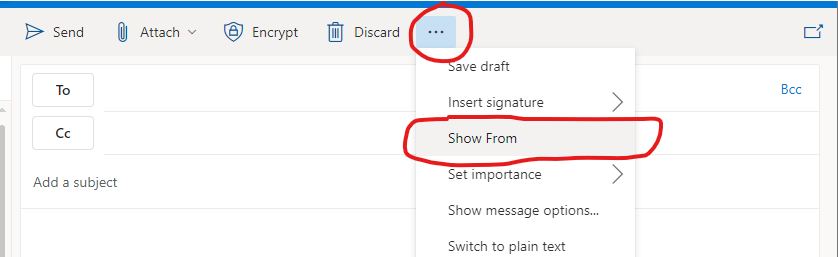
- Click on the From button and then select Other email address... and then enter the shared mailbox address you have access to.

This page has no comments.