Introduction
This guide is based on operating system Windows 11. To connect using Windows 10, check this guide on the Microsoft homepage.
Eduroam or Education Roaming (roaming in academic networks) is a project that allows users of academic networks free access to the Internet in all institutions that have joined the project.
Abroad, user username@ut.ee must be entered in the user ID field. You can find more detailed information on the EEnet website.
To establish the connection:
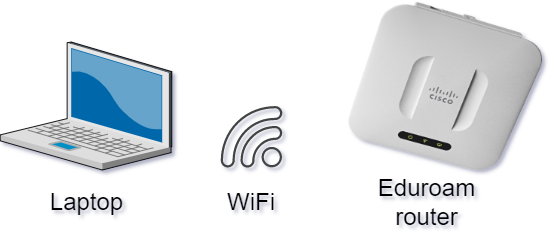
- Connect to the Eduroam network using a Wi-Fi (wireless computer network) connection (e.g. laptop, smartphone, tablet).
How to detect you Internet connection status?
- Open your Desktop and check the bottom right corner to view your Internet connection status
| Internet connection status | Icon |
|---|---|
| Internet is connected via Wi-Fi |
|
| No internet connection |
|


Laptop/smart device connection via Wi-Fi
| Guide | Screenshot | |
|---|---|---|
| 1 | Open your computer desktop and press the Internet connection button in the lower right corner of the screen |
|
| 2 | A menu will open, click on the arrow next to the Wi-Fi sign |
|
| 3 | Press the switch in the upper right corner, which turns light blue when Wi-Fi is on |
|
| 4 | Look for eduroam in the list of Wi-Fi networks and press "Connect". |
|
| 5 | Enter the user ID and password of the information systems of the University of Tartu and press "OK". Format:
NB! There must not be a check mark in front of "Use your user name and password". |
|
| 6 | To confirm the connection, make sure that it is the correct Wi-Fi network and press "Connect" |
|
| 7 | You have successfully connected to the eduroam Wi-Fi network |
|


Common problems
Here you can find answers to the most common problems related to establishing an Internet connection.
Incorrect username/password or you have recently changed your password
- If you see that after entering the user ID and password, you still cannot access the Internet connection or there was some other error when logging in, the following window will be displayed.

- In order to enter the UT username and password again, right-click on the Eduroam Wi-Fi network icon and select "Forget".

- Start the connection process from the start.